Each HexTool edition is a one-time purchase that activates online and binds to your PC, and includes 1 year of free updates. After that first year you can optionally renew updates to keep receiving new features — the app itself keeps working either way. The whole flow is: buy on the website → install HexTool → enter your purchase email in the activation dialog → activated.
1. Buy a license
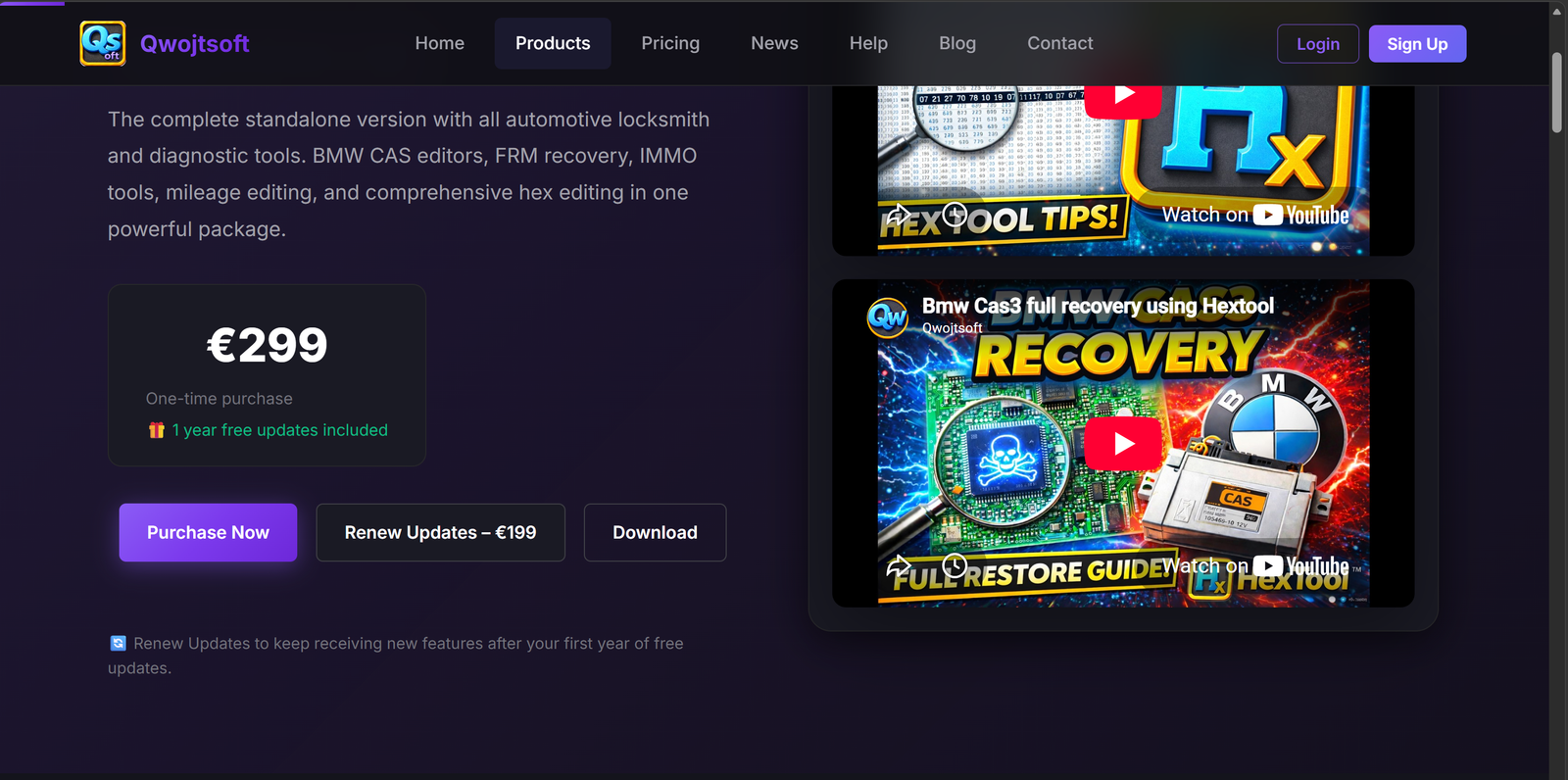
On qwojtsoft.com, open the edition you want (Basic / Full / Pro / Ultimate) and press Purchase Now. Use an email address you'll remember — that purchase email is what activates the app later.
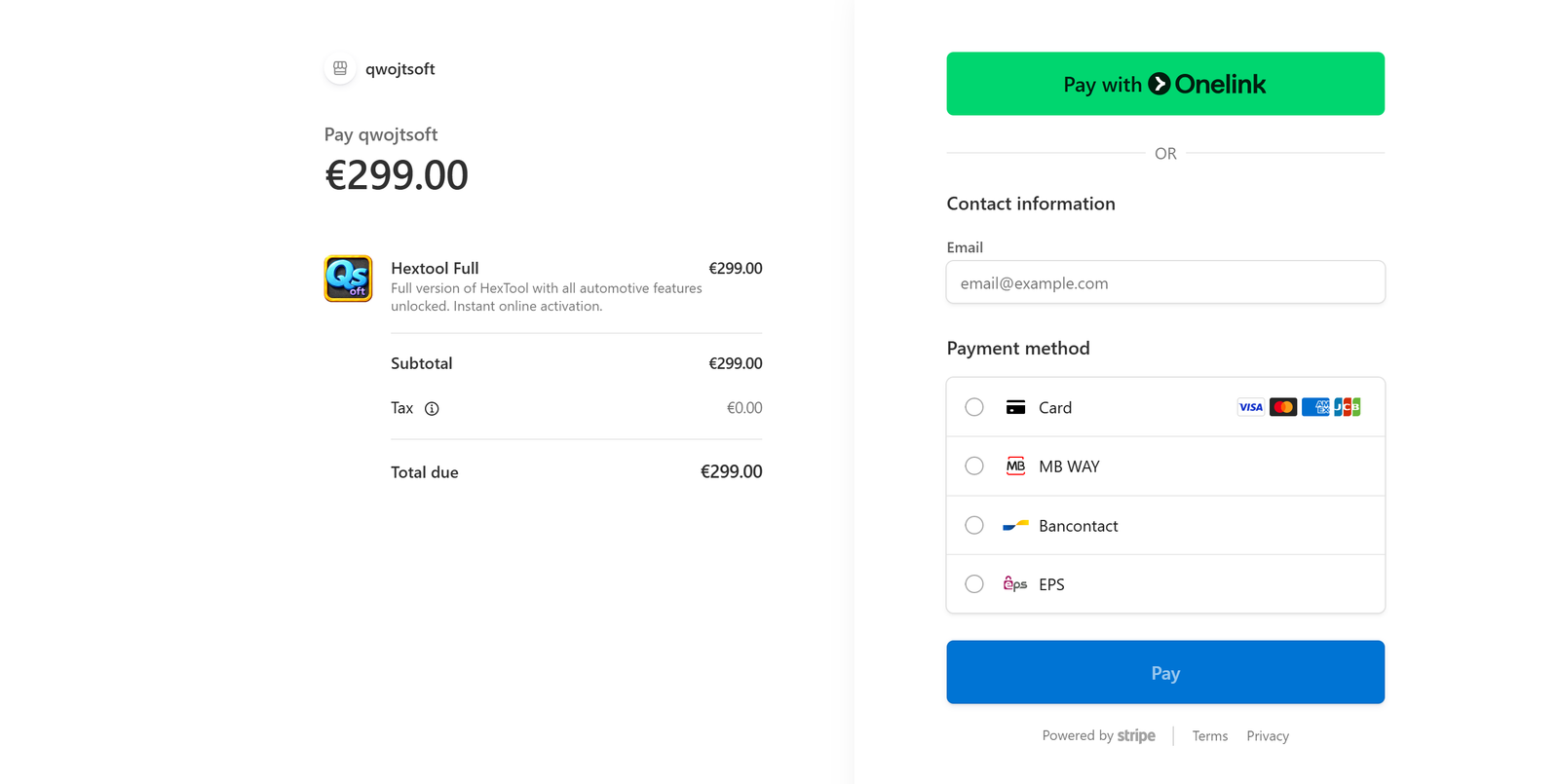
Checkout is handled securely by Stripe (256-bit TLS, PCI-DSS Level 1 — no card data is stored on Qwojtsoft's servers). Pay by card or a local method (MB WAY, Bancontact, EPS, and others depending on your region).
2. Activate in HexTool
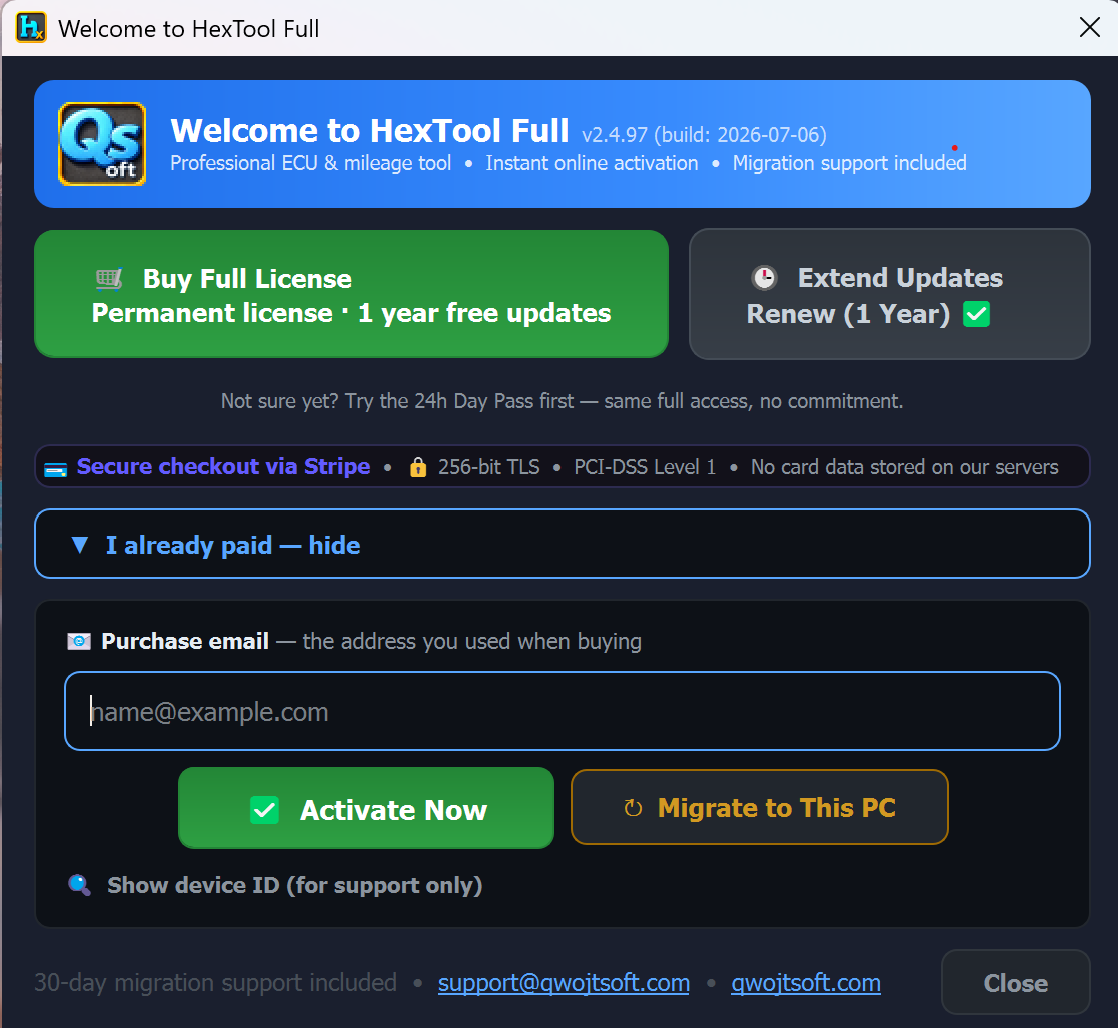
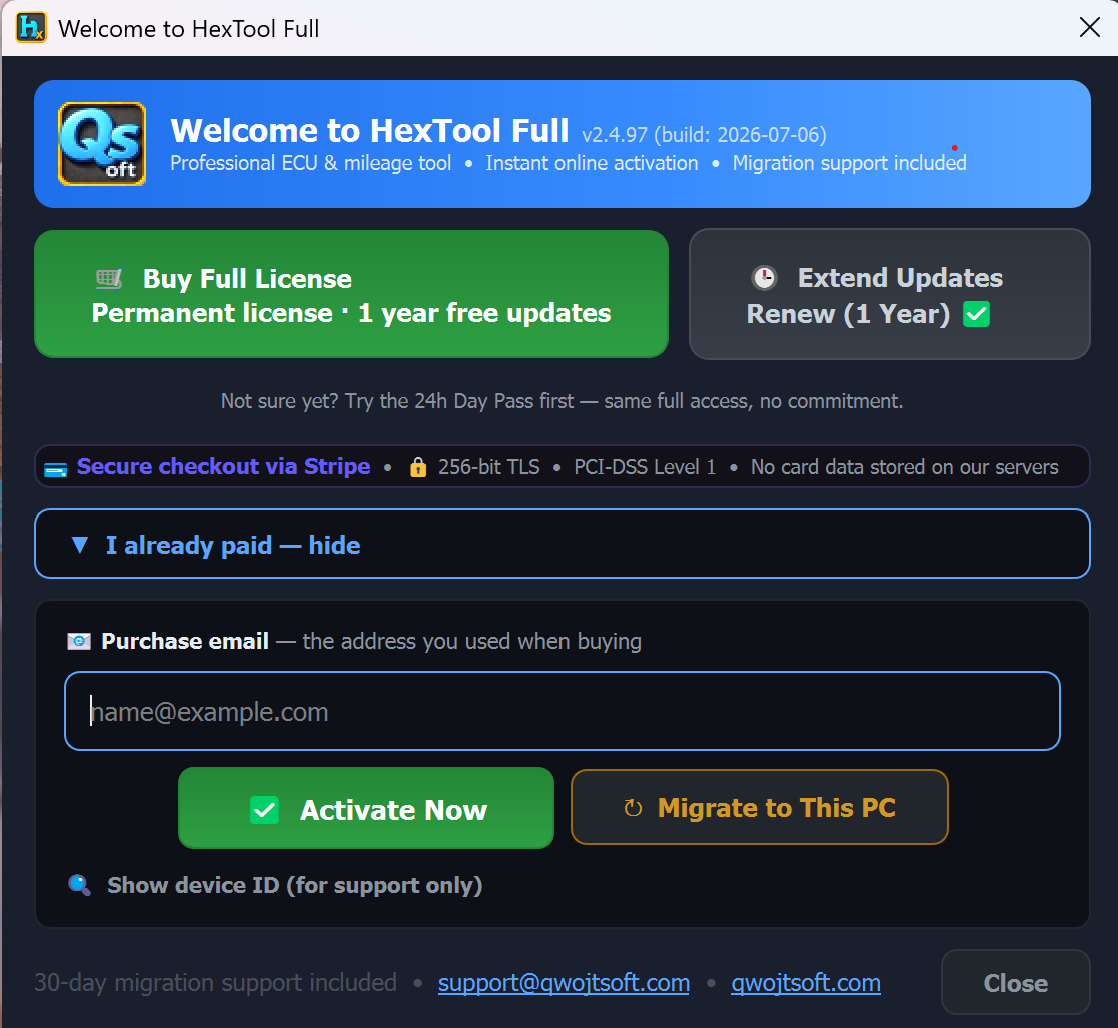
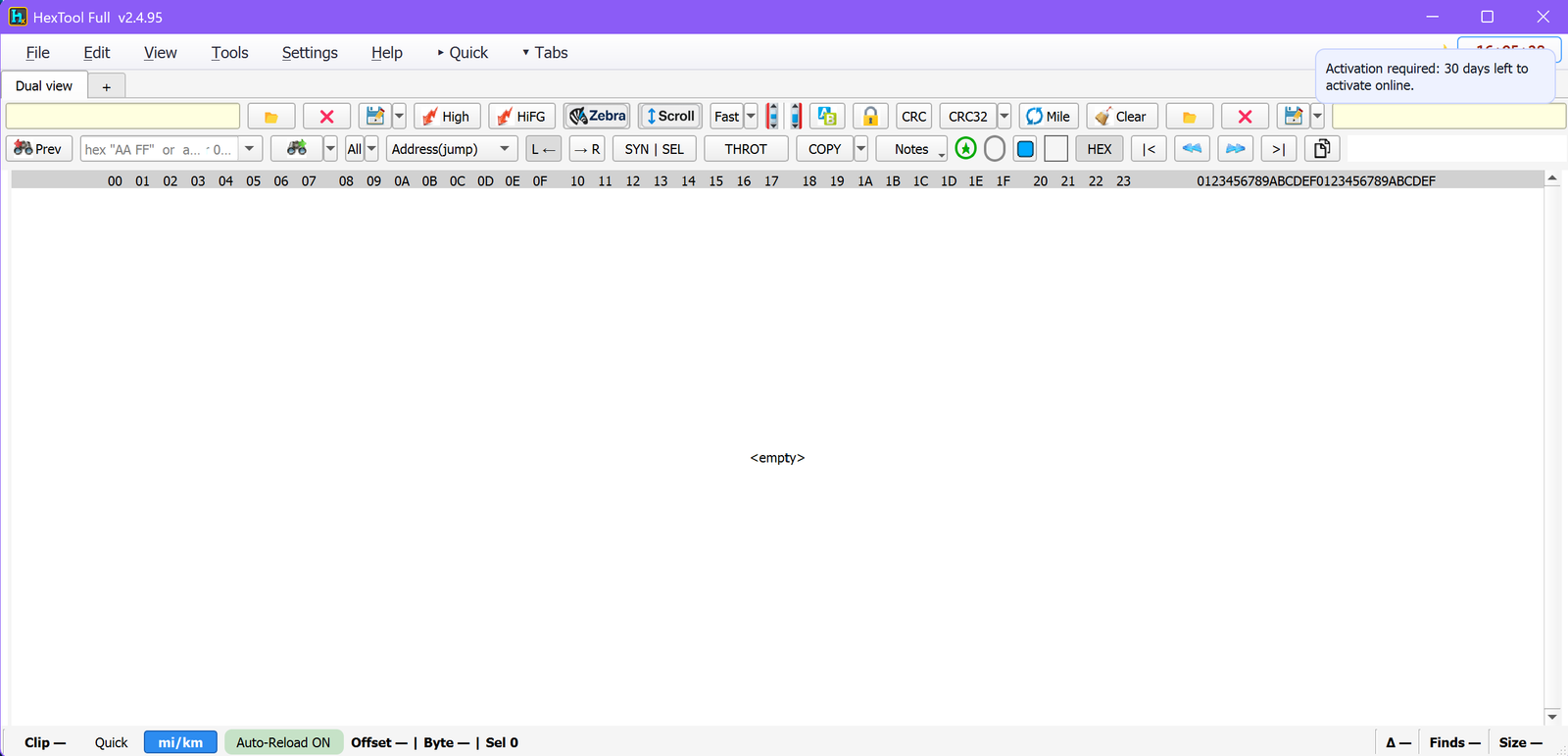
Download and install HexTool, then open it — the Welcome / activation dialog appears (you can also reach it any time from Help → About → License). Under "I already paid", type the Purchase email you used at checkout and press Activate Now. Activation is instant and online — no key to copy by hand.
Buy Full License — opens the store to purchase, if you haven't yet.
Extend Updates / Renew (1 Year) — renews your update access once the free year is up.
Activate Now — activates this machine against your purchase email.
Migrate to This PC — moves an existing license from another computer to this one (see below).
Show device ID — reveals this machine's hardware ID (HW-ID), for support only.
3. Moving to a new PC — Migrate
Your license is tied to a hardware ID, but you can move it yourself: install HexTool on the new machine, open the activation dialog, enter the same purchase email and press Migrate to This PC. Self-migration is allowed up to 5 times a year, and 30-day migration support is included if anything goes wrong. For the full step-by-step — including releasing the old PC first — see Migrating to a New PC.
Managing your license inside HexTool
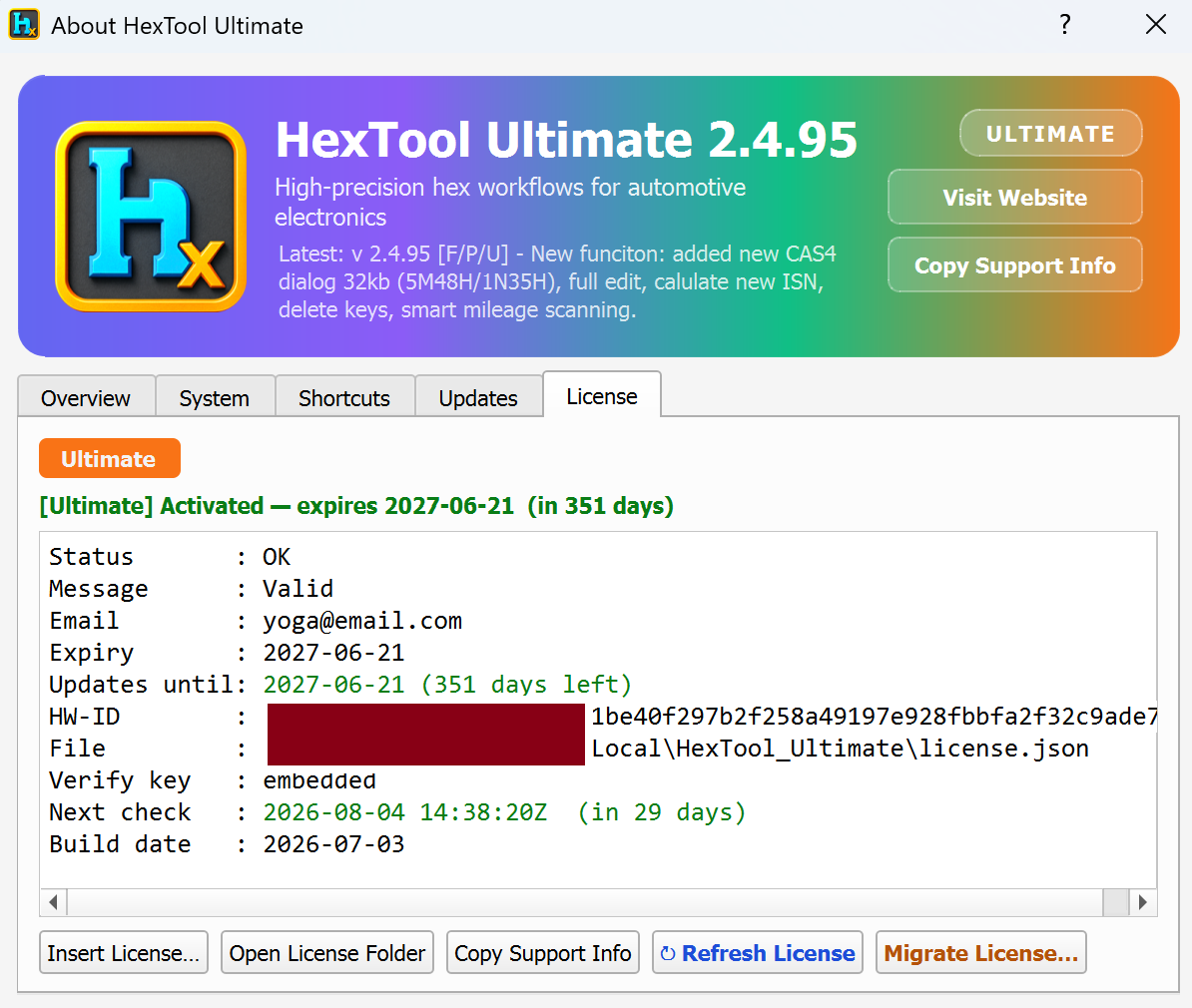
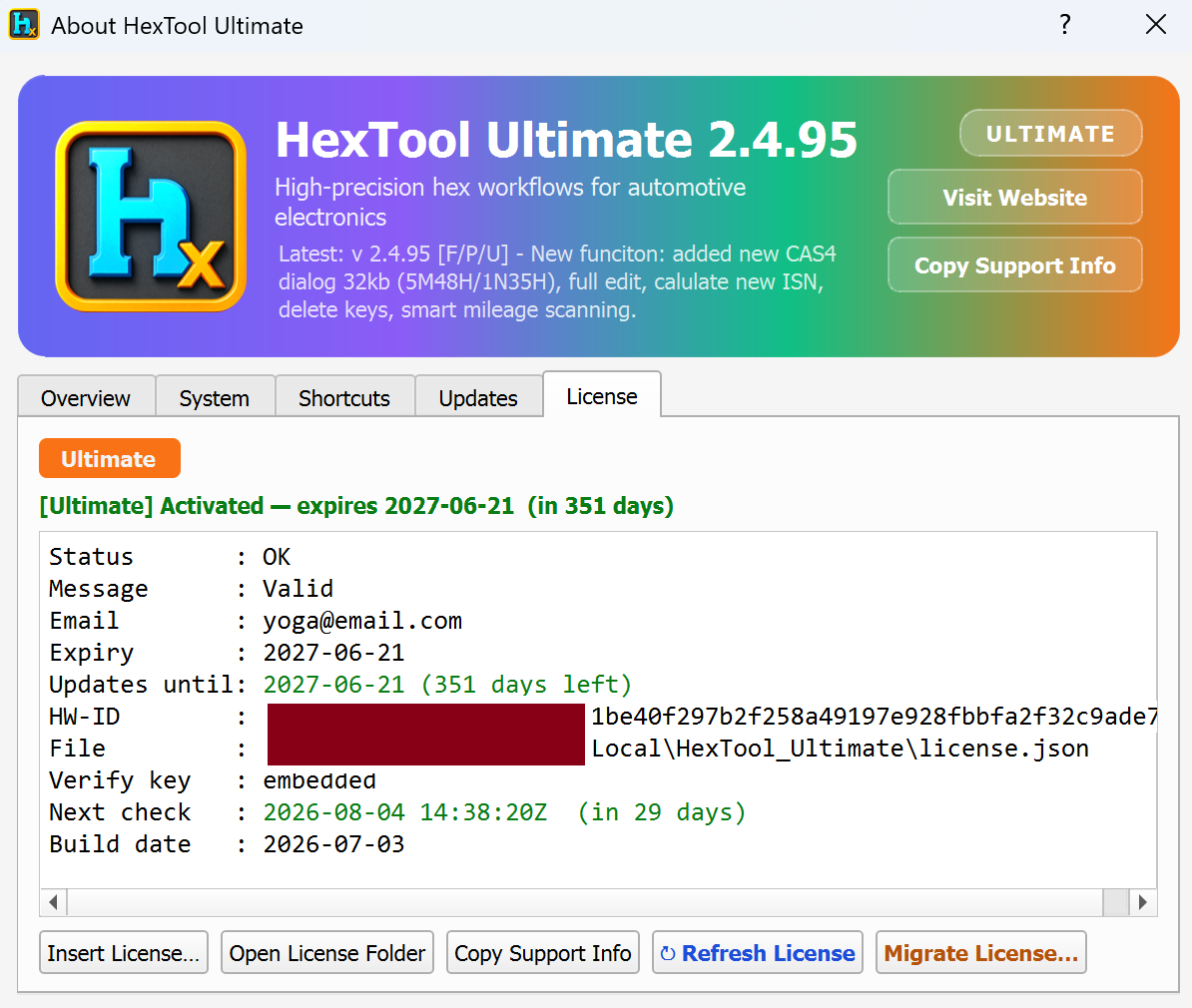
The Help → About → License tab shows your current status — edition, activation state and expiry countdown, plus a details block (Email, Expiry, Updates-until date, HW-ID, license file path, next check date, build date). From there you can:
Insert License… — apply a license file manually.
Refresh License — re-check activation/updates status with the server.
Migrate License… — start a migration to a new machine.
Open License Folder / Copy Support Info — locate the license file or copy your details for support.
Requirements
An internet connection for activation, migration, and update checks.
The purchase email you used at checkout.
Trouble activating? Email support@qwojtsoft.com with your purchase email and device ID (Show device ID in the activation dialog) and we'll sort it out.
Interface & Menus / Migrating to a New PC
Migrating to a New PC
What is this?
Your license is tied to one machine's hardware ID (HW-ID), but you can move it to a different computer yourself — no support ticket needed. Migration is a simple two-step "release here, activate there" process, and your remaining license time and updates travel with you. Self-migration is allowed up to 5 times a year, with 30-day migration support included.
Open Help → About → License. This tab shows your current activation — edition, expiry, "Updates until", HW-ID, and the license file path.
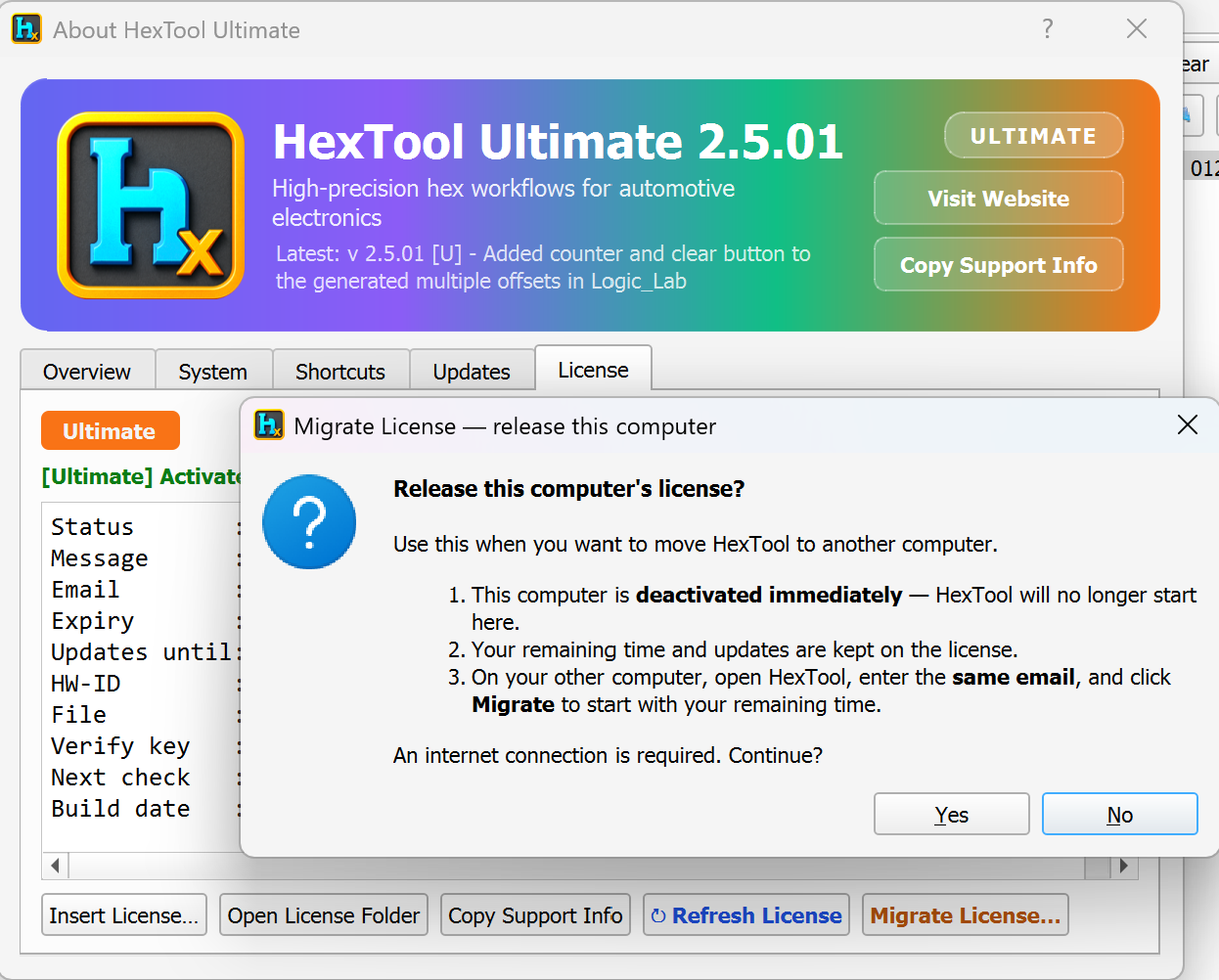
Click Migrate License… (bottom-right). HexTool asks you to confirm "Release this computer's license?" and explains exactly what happens:
This computer is deactivated immediately — HexTool will no longer start here.
Your remaining time and updates are kept on the license (you don't lose anything).
On your other computer, you'll open HexTool, enter the same email, and click Migrate to continue with your remaining time.
An internet connection is required. Press Yes to release the seat.
Step 2 — On the NEW computer: activate it
Install HexTool on the new machine and open it — the Welcome / activation dialog appears (or reach it from Help → About → License). Under "I already paid", enter the same purchase email and press Migrate to This PC. HexTool activates on the new machine with your remaining time and updates intact.
Do the "release" step first, while the old PC still works. If the old machine is dead or already wiped and you couldn't release it, don't worry — email support@qwojtsoft.com with your purchase email and the new machine's device ID (Show device ID in the activation dialog) and we'll release it for you.
Requirements
An internet connection on both machines.
The same purchase email used to activate originally.
Interface & Menus / General UI & Window
General UI & Window
This covers the parts of the main HexTool window that aren't tied to a specific module — the title bar, clock, copy/notes behavior, search modes, and the quick mi/km converter.
Title bar — 3 look variants
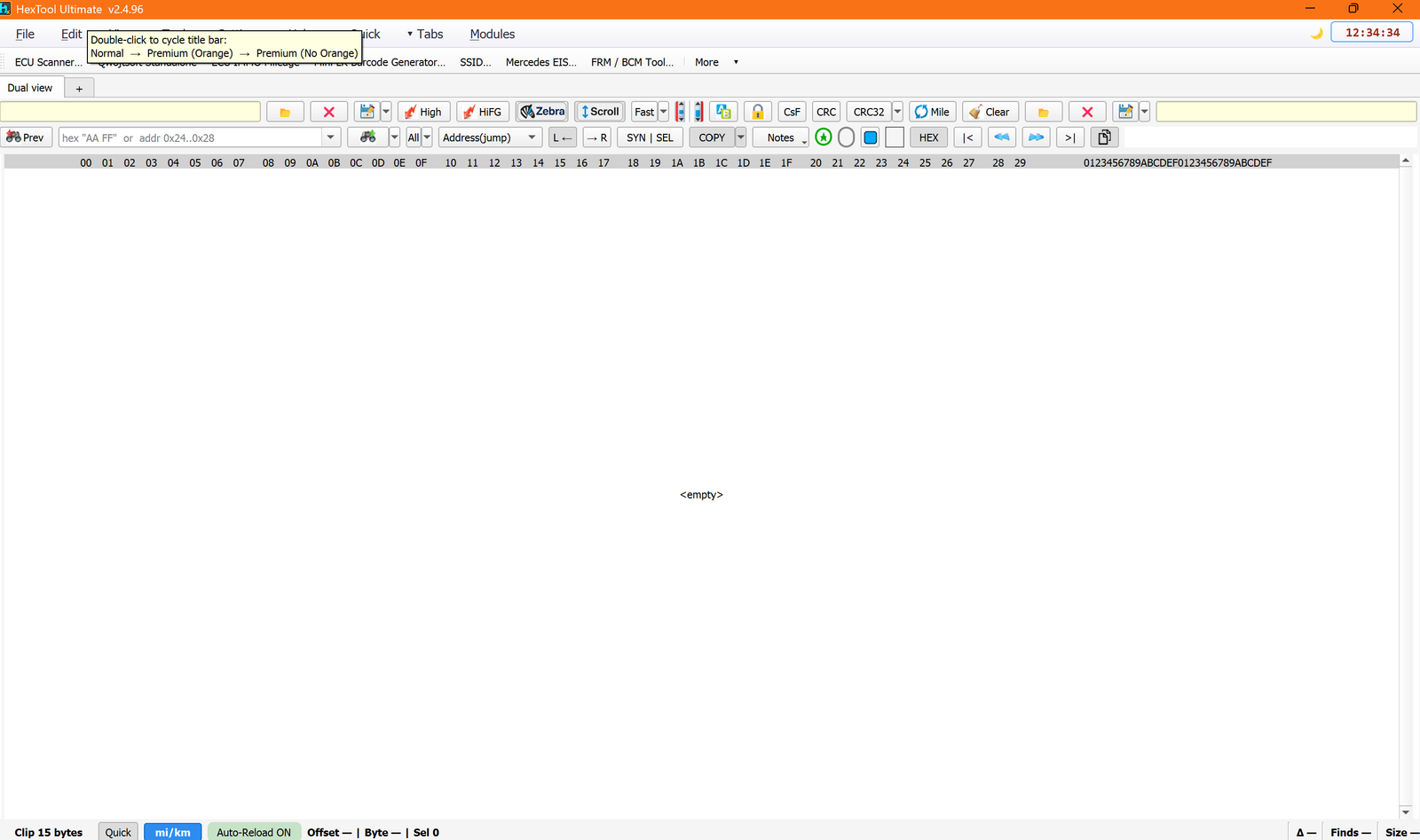
Double-click the top-left corner / title bar to cycle through 3 looks: Normal → Premium (Orange) → Premium (No Orange) — and back to Normal. A tooltip confirms this when you hover there.
Clock (top-right)
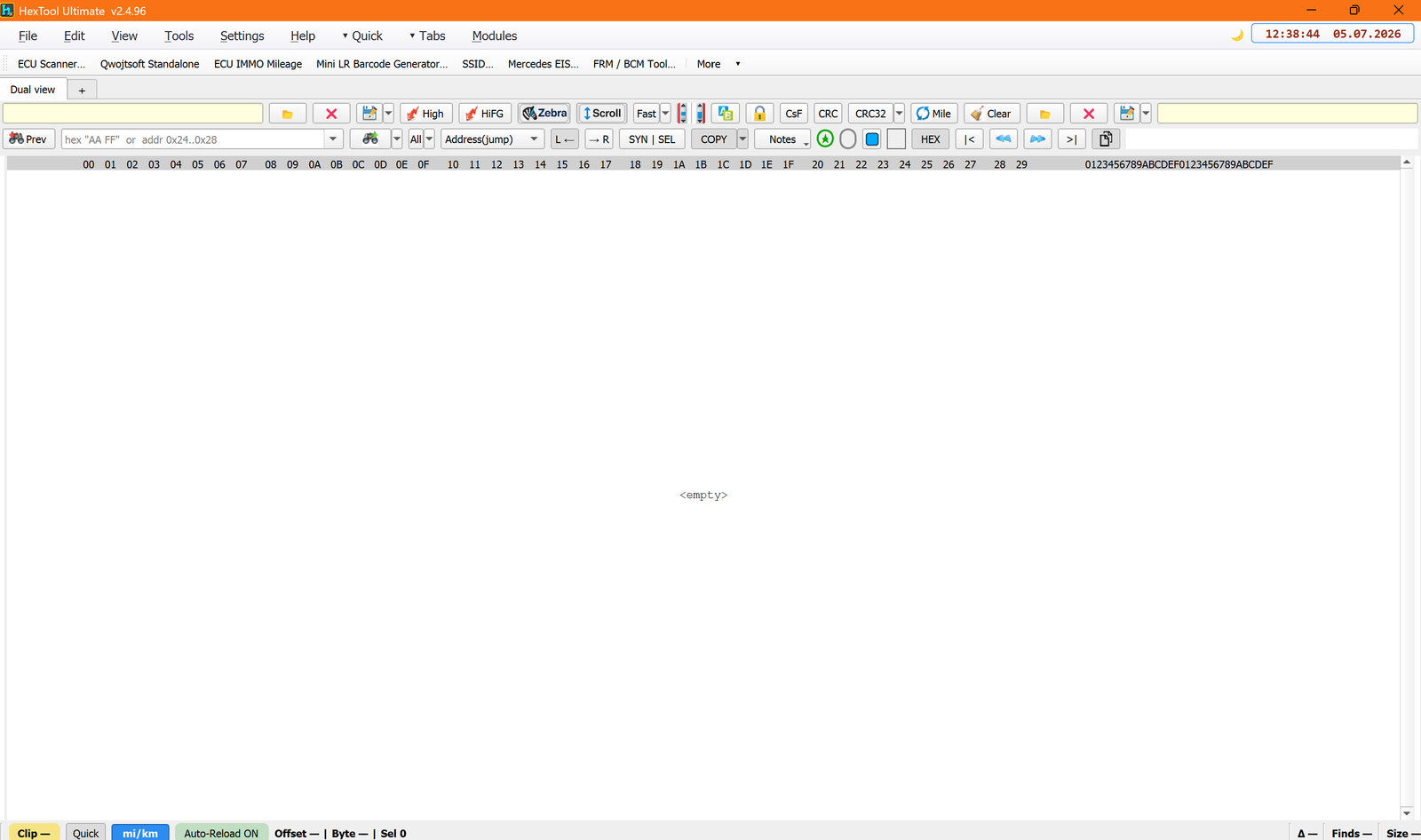
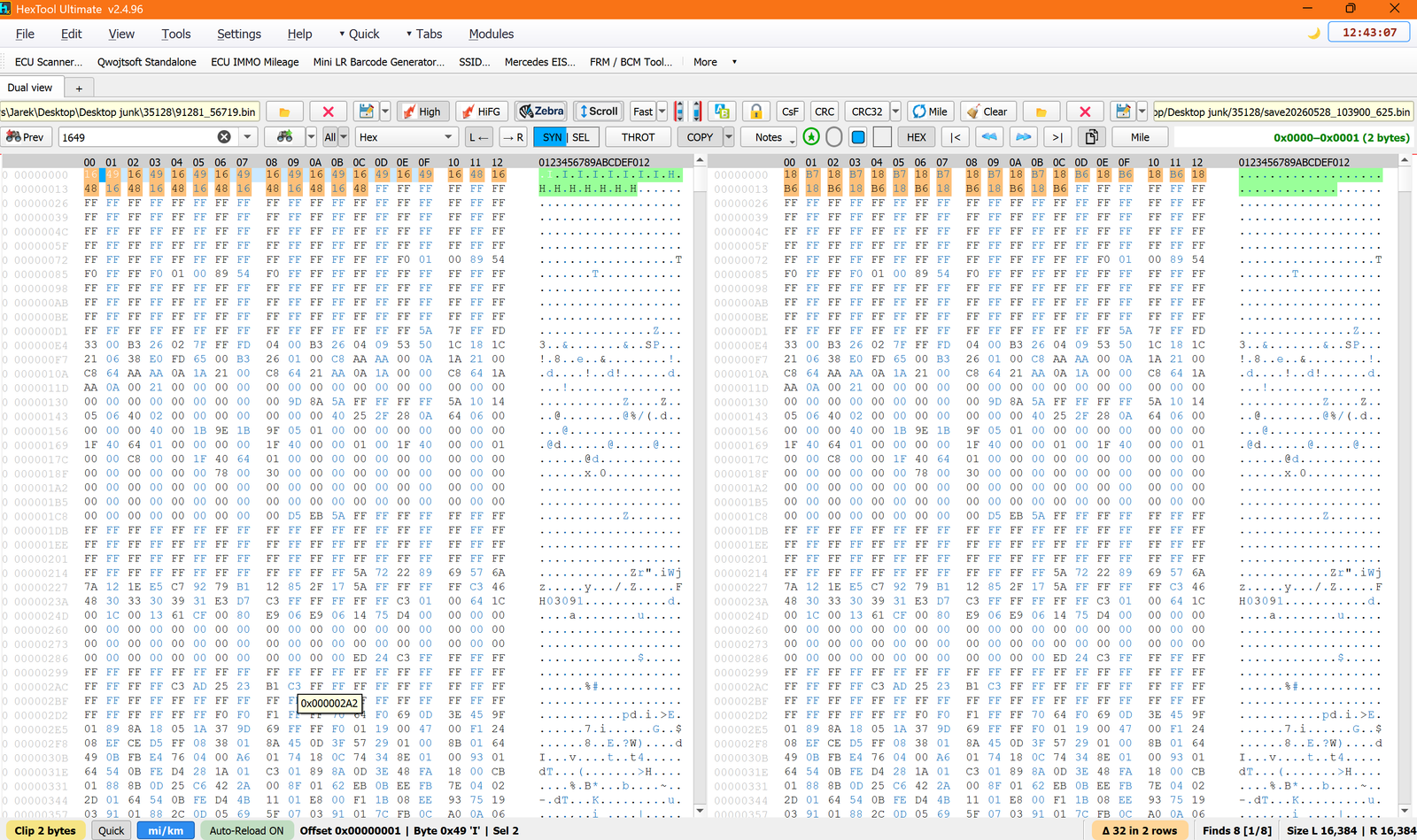
Click the clock to expand it — it shows the date alongside the time (e.g. 12:38:44 → 12:38:44 05.07.2026). Click again to collapse back to time-only.
Light/Dark mode
The small moon/sun icon next to the clock switches the whole app between light and dark mode.
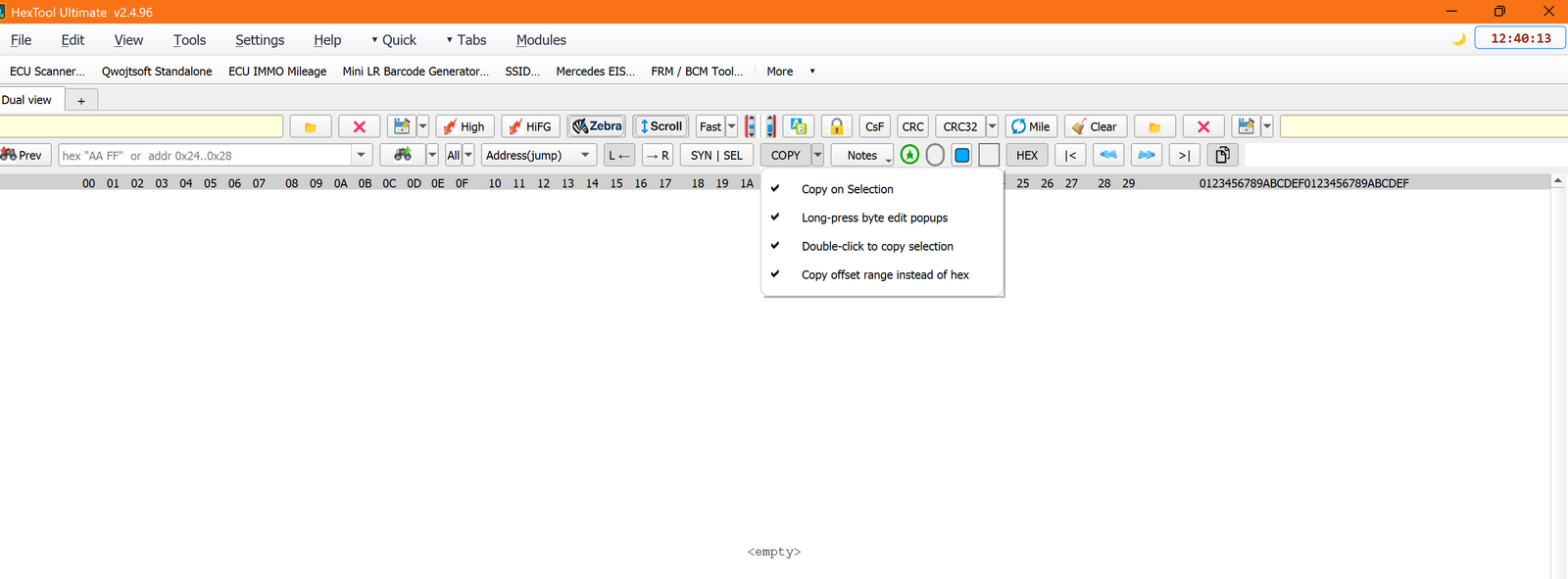
COPY — dropdown options
The COPY button's dropdown arrow reveals toggleable copy behaviors:
Copy on Selection — automatically copies bytes as soon as you select them, no extra click needed.
Long-press byte edit popups — hold on a byte to bring up an edit popup.
Double-click to copy selection — quick alternate gesture for copying.
Copy offset range instead of hex — copies the start–end offset range as text instead of the actual hex bytes.
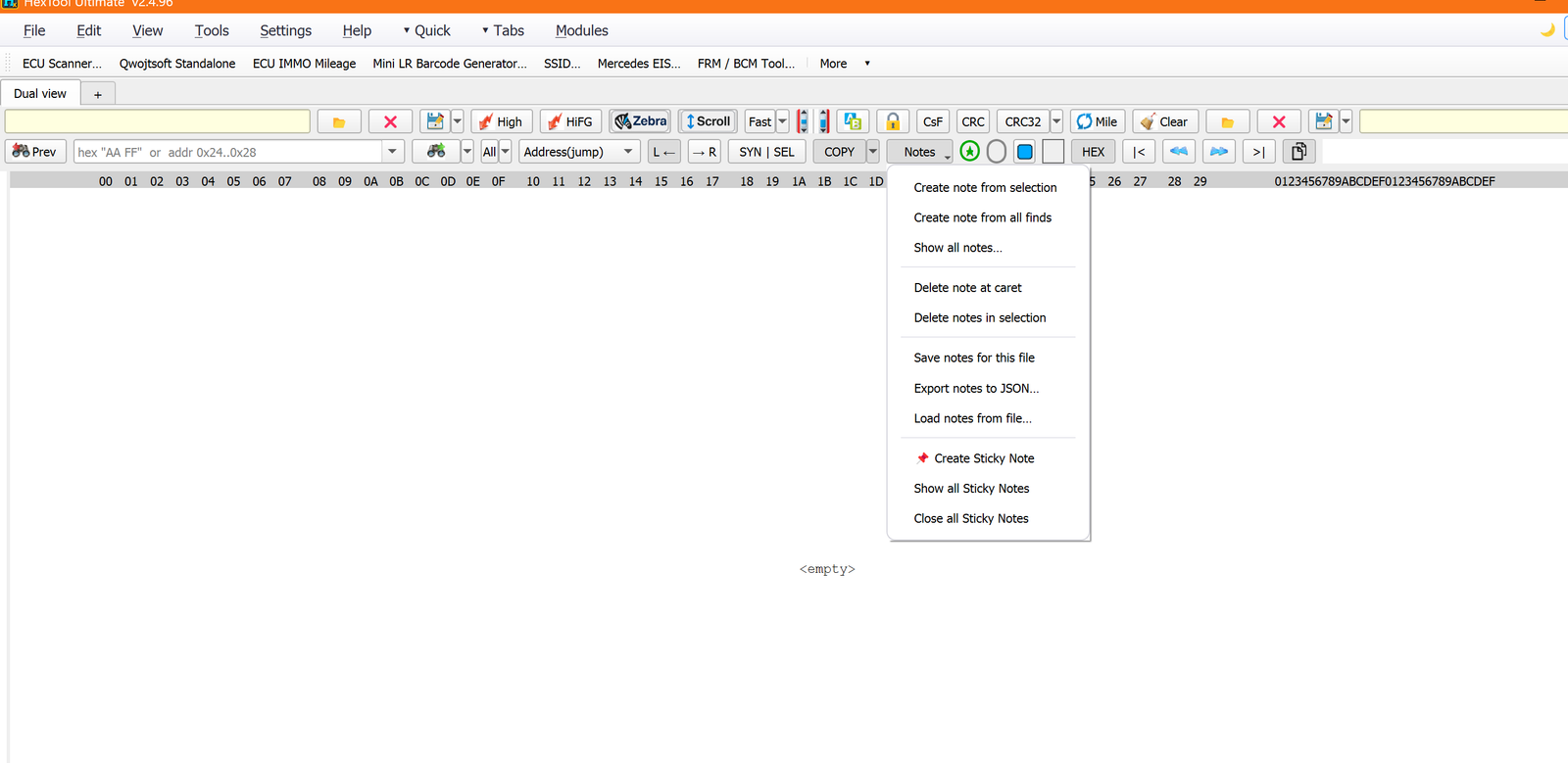
Notes — dropdown options
The Notes button's dropdown gives you a full annotation system for the loaded file:
Create note from selection / Create note from all finds — attach a note to selected bytes, or to every search-result match at once.
Show all notes… — list every note in the file.
Delete note at caret / Delete notes in selection.
Save notes for this file, Export notes to JSON…, Load notes from file… — persist notes alongside (or independently of) the binary.
Create Sticky Note, Show all Sticky Notes, Close all Sticky Notes — floating on-screen notes that aren't tied to specific bytes.
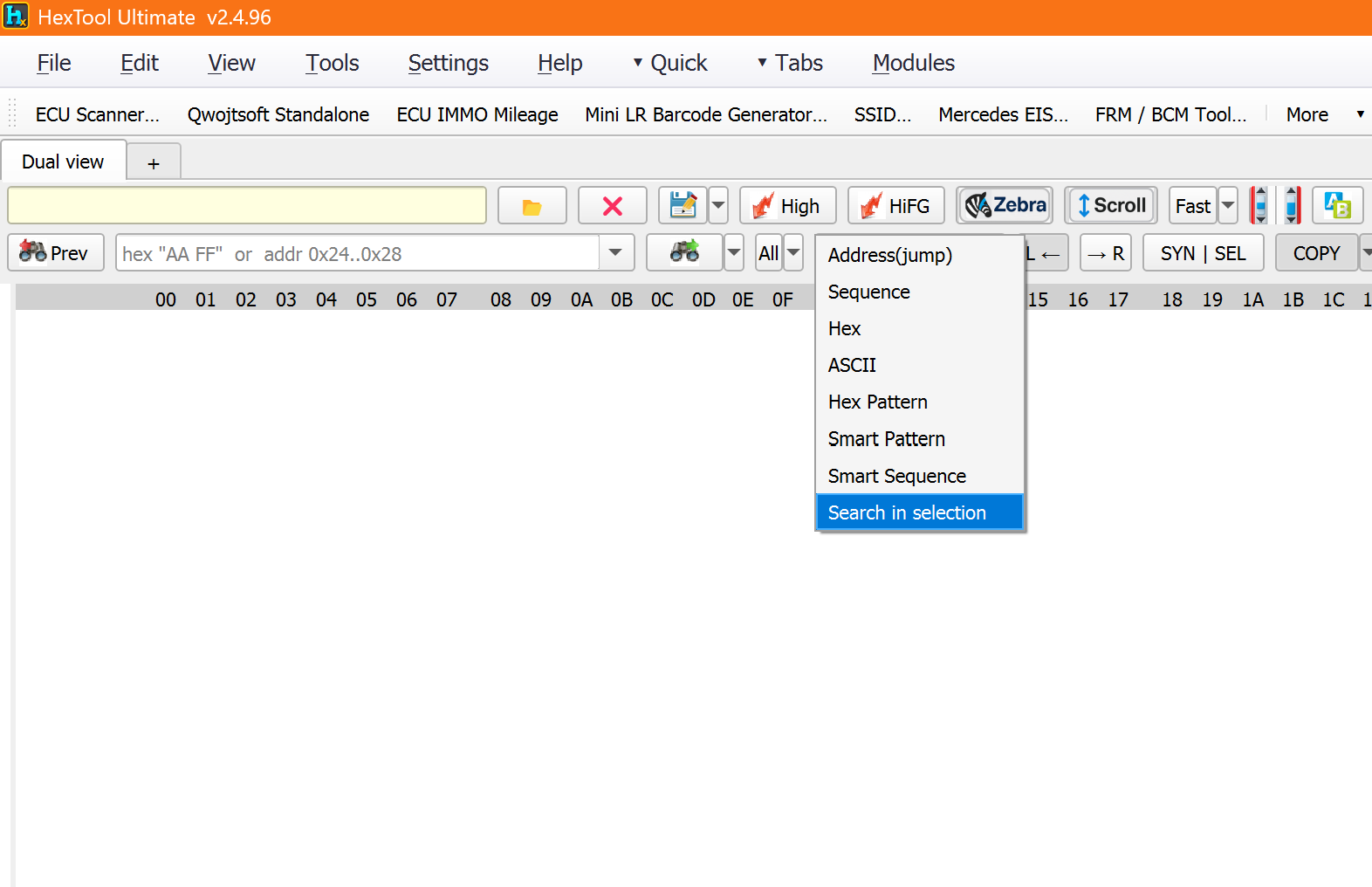
Search mode dropdown
Next to the search box, the mode dropdown controls how your search term is interpreted:
Search in selection — restrict the search to the currently selected range only.
Quick mi/km converter
At the bottom-left of the window, two small fields (labeled mi and km) next to the mi/km toggle let you type a value in either unit and get the instant conversion — a quick calculator that doesn't require opening the full Mileage tool.
Status bar (bottom)
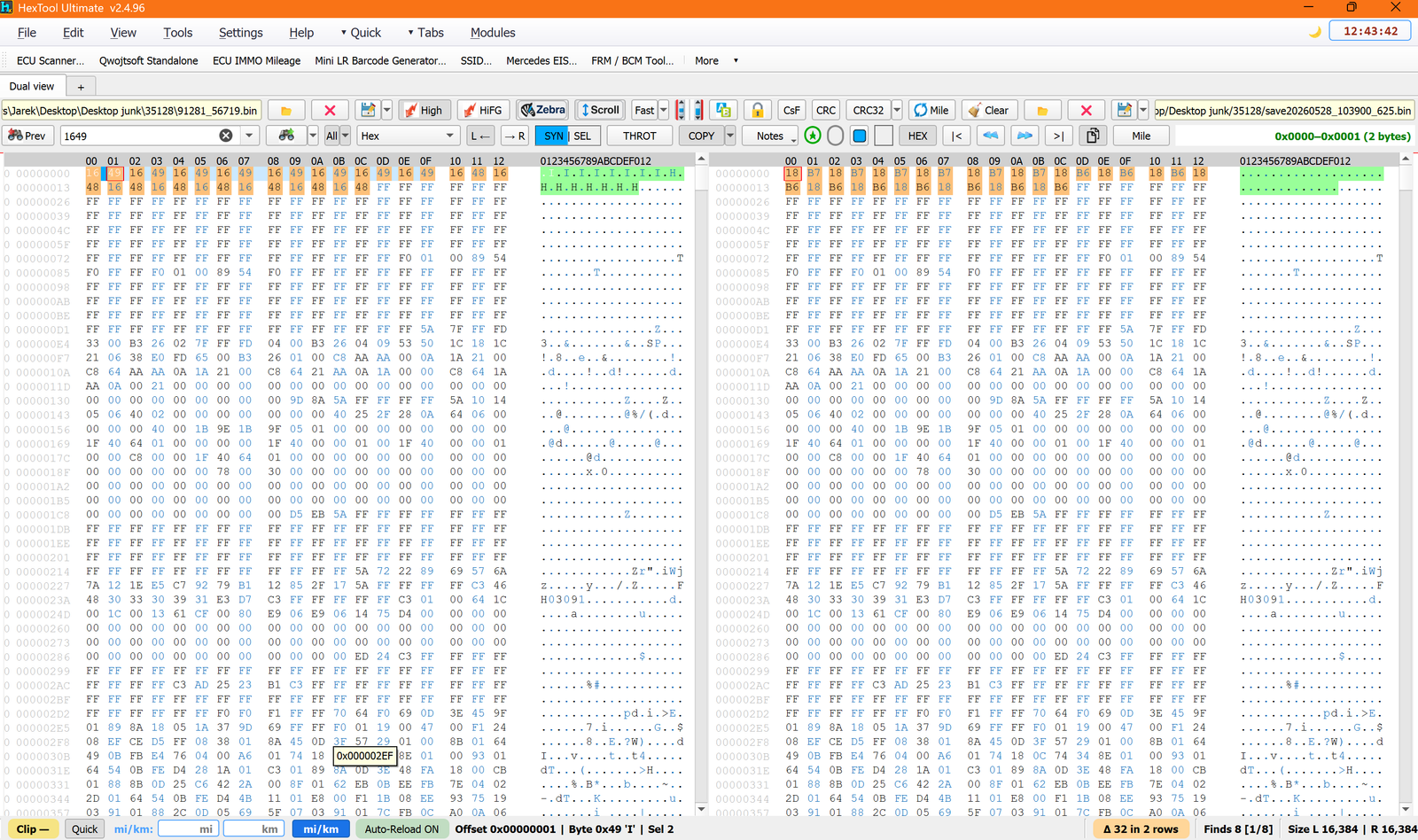
Running left to right, the status bar shows live context for whatever you're doing in the hex view:
Clip — / Clip N bytes — size of your current clipboard content.
Quick — quick-mode indicator/toggle.
mi/km — current mileage unit mode.
Auto-Reload ON — the file will automatically reload if it changes on disk.
Offset / Byte / Sel — the offset under the cursor, the byte value there (with its ASCII char), and how many bytes are currently selected.
Δ (delta) — how many bytes differ between the left and right panes, and across how many rows.
Finds [x/y] — how many search matches were found, and which one is currently focused.
Size L / R — the loaded size of the left and right pane buffers.
Hovering over a byte in either pane also shows a small tooltip with its absolute offset (e.g. 0x000002A2).
Tip: most toolbar buttons (High, HiFG, Zebra, Scroll, Fast, CsF, CRC, CRC32, Mile, Clear, etc.) show a descriptive tooltip when you hover over them — hover any button you're unsure about for a one-line explanation of what it does.
Interface & Menus / Toolbar Reference
Main Window Toolbar Reference
Every button below is listed with its actual tooltip text (pulled straight from the app) plus a plain-English explanation of what it does. The toolbar is split into two rows.
Row 1 — file panes, highlighting, checksum
Button
Tooltip
What it does
📂 (left)
—
Open a file into the left pane
❌ (left)
—
Close the file in the left pane
💾 save (left)
"Save Left file (click for Save As, dropdown for quick Save)"
Click = Save As dialog; use the dropdown arrow for a quick overwrite-save
High
"Highlight different bytes with background color"
Colors the background of bytes that differ between panes
HiFG
"Highlight different bytes with text/foreground color"
Colors the text of differing bytes instead of the background
Zebra
"Tint every other byte column"
Alternating column tint for easier column-tracking, on by default
Scroll
"Scroll both panes simultaneously"
Keeps left/right panes scrolled to the same position
Fast / Prec
"Scroll speed mode"
Toggles between Fast (3 lines) and Precision (1 line) per scroll tick
diff bars
"Turns on side diffbars"
Shows a side strip marking where left/right differ
replace
"Insert/replace bytes in selected area"
Opens the Replace/Insert Bytes tool for the current selection
Lock
"Lock current selection → permanent highlight"
Keeps the current selection highlighted even after you click elsewhere
CsF
"Checksum scanner"
Opens the checksum scanner (hunts for where/how a checksum is calculated)
CRC
"Checksum of selection (MD5 / SHA / CRC / sums)"
Instantly computes common hashes/checksums over the current selection
CRC32 (dropdown)
"Select algorithm for Live CRC"
Picks which algorithm "Live CRC" tracks live as you edit — a huge list: CRC32, MD5, SHA1, SHA256, Byte sum, 2's complement, Sum+Compl, Sum-3FC/7F8 (Digitek), XOR-8/16/INV, WordSum LE/BE, Fletcher-16, CRC-CCITT/XModem/IBM/MODBUS/USB/X25/KERMIT, CRC-PSA-BSI, unusual multiplier sums (1.25×/1.33×/1.5×/2×/2.5×/3×/0.5×…), plus an "Unusual Scan" that tries them all
Mile
"Pop out window with the mileage card"
Opens the mileage editor as a separate window
Clear
"Clear all colored marked areas"
Removes all highlight colors/overlays from the view
📂 / ❌ / 💾 (right)
—
Open / close / save for the right pane (same as left)
"Smart Search — mode auto-detects from your input"
Type almost anything and it figures out what kind of search you mean (full breakdown below)
Next
"Search next find (click to search, dropdown to select N bytes from hit)"
Click to jump to the next match; the dropdown lets you auto-select N bytes from each hit, plus a nibble-search sub-mode (HI+LO / HI only / LO only)
All
"Find All mode (click to toggle, dropdown to select all finds)"
Toggle to find every match at once; dropdown adds Select/Lock All Finds, Copy Locked Offsets, Send Locked Offsets to Offset Tool, Note All Finds, Find(+All)+Select N, Cross-Pane Match
L ← / → R
"Switch to the left/right pane to search or select"
Makes the left or right pane the active target for search/selection
SYN | SEL
"Synchro selection on both panes"
Selecting bytes in one pane mirrors the same selection in the other
THROT
"Throttle Selection: reduce lag during rapid drag selection…"
Trades a little selection responsiveness for smoothness on big files
COPY
"Copy logic toggles…"
Click toggles Copy-on-Selection; dropdown has all copy-behaviour switches
Notes
"Notes / annotations for this file"
Opens the Notes menu (full annotation system)
★
"Quick Favourites — pick a highlight colour"
One click opens a small popup to pick a highlight color
invisible-selection
"Toggle invisible selection (counts bytes but hides highlight)"
Select bytes (e.g. for a count) without visibly highlighting them
Palette
"Open color palette dialog"
Opens the full color picker for custom highlight colors
frame toggle
"Toggle byte-frame overlay"
Draws a frame/border overlay around bytes
HEX / DEC
"User can search by decimal or hex address"
Switches whether typed addresses are decimal or hex
|< / >|
"Go to FIRST/LAST difference"
Jumps to the first/last differing byte (Ctrl+Shift+P / Ctrl+Shift+N)
Prev / Next (diff)
"Go to previous/next difference (P / N)"
Jumps to the previous/next differing byte
Mile (row 2)
"Open Mile_Clean_08 Module (Pop-out)"
Opens the mileage module in its own pop-out window
Hex bytes:FF 00 A3 or FF00A3 (spaces optional) — two or more hex bytes auto-switches to Hex mode
ASCII text: type readable text like VIN, error, BMW — non-hex text auto-switches to ASCII mode
Hex Pattern (wildcards):FF ?? 00, ?6, 6? — a number alone (e.g. 8) finds 8-byte blocks bounded by 00/FF
Sequence: a number alone finds ASCII runs of that exact length
Tip: search is smart — just type and press Enter.
Interface & Menus / File Menu
File Menu
Item
What it does
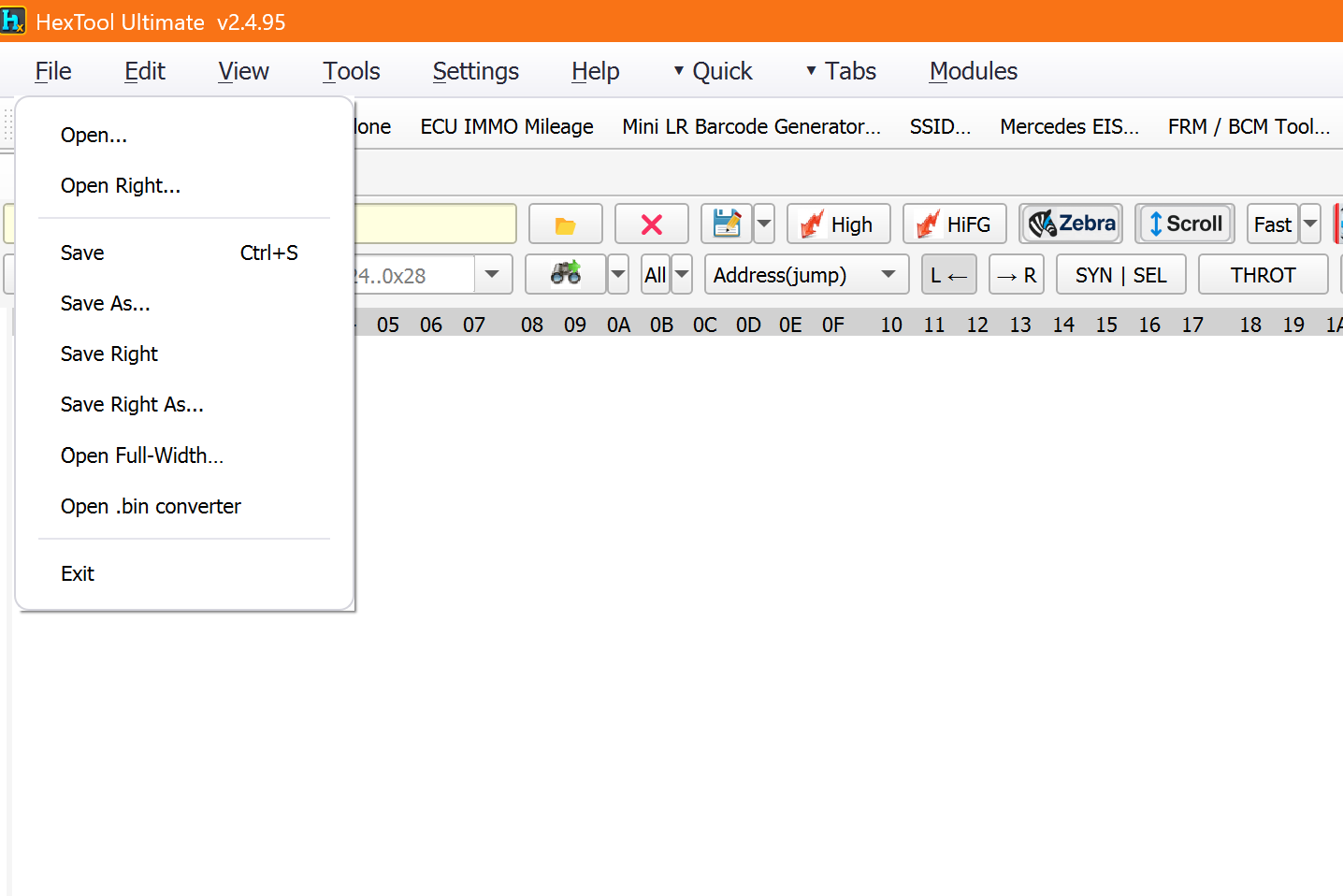
Open…
Opens a file into the left pane.
Open Right…
Opens a file into the right pane.
Save(Ctrl+S)
Quick-saves the left file (overwrites in place).
Save As…
Saves the left file to a new path/name.
Save Right / Save Right As…
Quick-save / Save-As for the right file.
Open Full-Width…
Opens a file as a brand-new tab (just before the + tab) instead of into the left/right pane — for viewing a file on its own, full-width, alongside your dual-pane work.
Open .bin converter
Opens the Bin File Converter dialog — load multiple .bin files at once and batch-process/rename them, rather than one at a time.
Exit
Closes HexTool.
Interface & Menus / View Menu
View Menu
Top-level items
Item
What it does
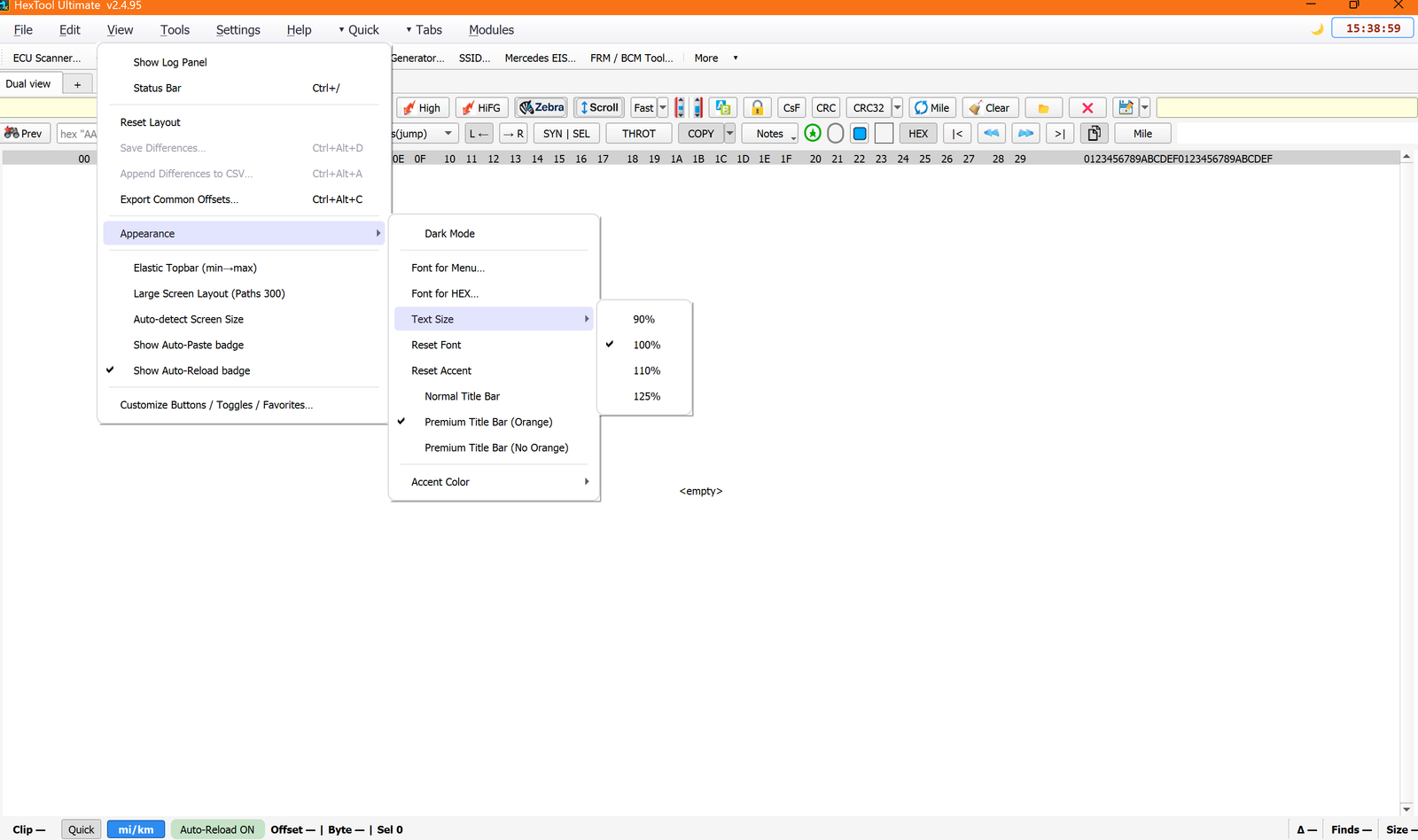
Show Log Panel
Shows/hides the app's log panel.
Status Bar(Ctrl+/)
Shows/hides the bottom status bar.
Reset Layout
Resets the window/panel layout back to default.
Save Differences…(Ctrl+Alt+D)
Exports every left/right byte difference to a file (CSV/JSON/Text).
Append Differences to CSV…(Ctrl+Alt+A)
Adds this comparison's differences onto a running aggregate CSV, instead of overwriting — build up diff data across many file-pairs over time.
Export Common Offsets…(Ctrl+Alt+C)
Reads an aggregated diff CSV and writes out how often each offset shows up as different — helps spot which offsets consistently vary across many dumps (mileage/checksum/serial fields).
Appearance ▸
Submenu — see below.
Elastic Topbar (min→max)
Lets the top toolbar stretch/shrink elastically with the window width.
Large Screen Layout (Paths 300)
Widens the file-path fields (to 300px) for large/high-res screens.
Auto-detect Screen Size
Switches Large Screen Layout on/off based on monitor size — under ~17" forces off; 17"+ auto-enables.
Show Auto-Paste badge / Show Auto-Reload badge
Show/hide the small status-bar badges for auto-paste and auto-reload.
Customize Buttons / Toggles / Favorites…
Opens a dialog to customize which toolbar buttons/toggles appear and set up favorites.
Appearance submenu
Item
What it does
Dark Mode
Switches the whole app to dark mode (same as the moon/sun icon near the clock).
Font for Menu… / Font for HEX…
Font pickers for the menu-bar text and the hex-view text.
Text Size ▸
Choose the overall UI text scale: 90% / 100% / 110% / 125%.
Reset Font / Reset Accent
Revert font choices / accent color back to default.
Normal / Premium (Orange) / Premium (No Orange) Title Bar
The same 3 title-bar looks you can cycle by double-clicking the title bar.
Accent Color ▸
Choose the app's accent color.
These are all display/layout preferences, persisted between sessions.
Interface & Menus / Settings Menu
Settings Menu
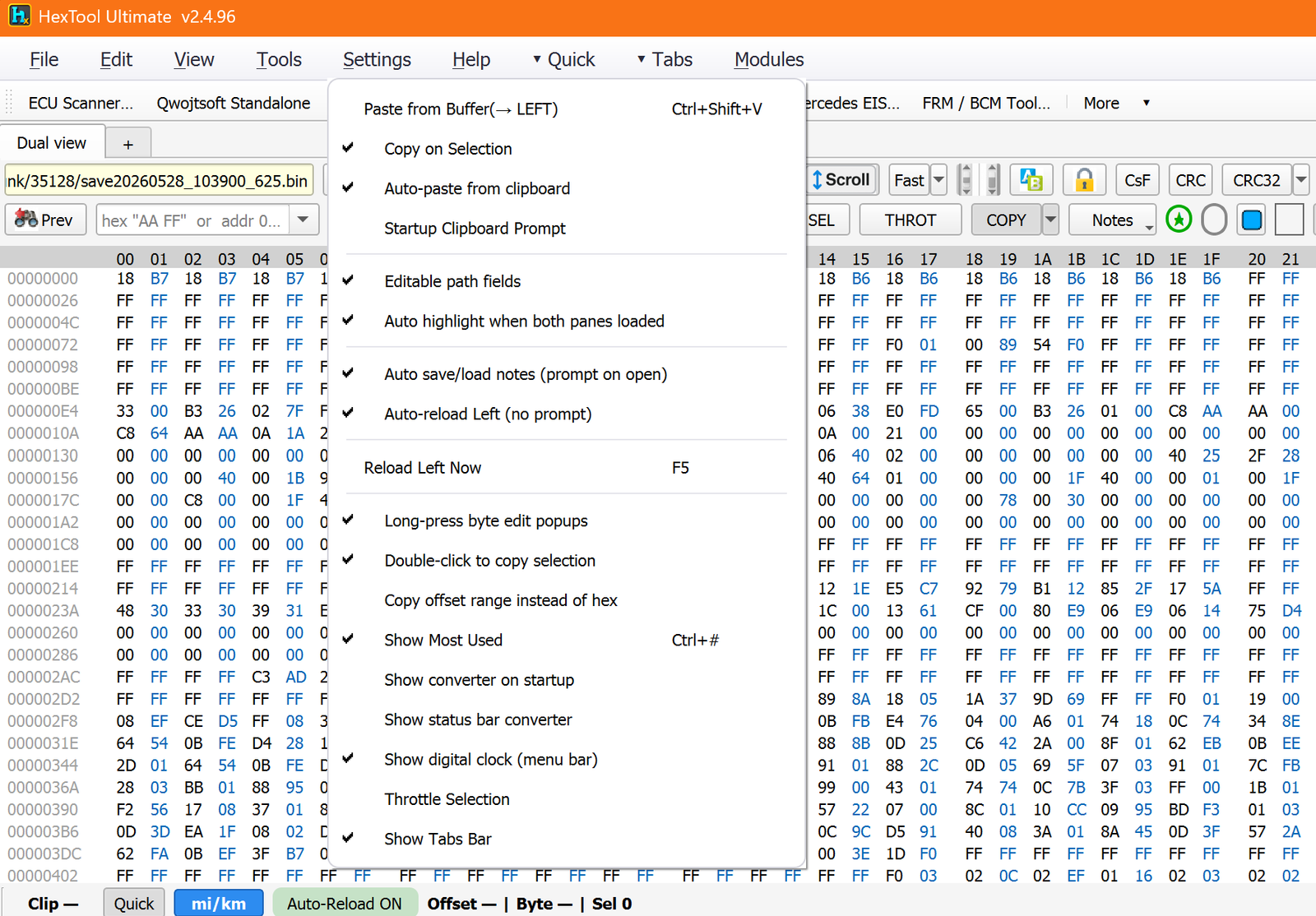
The Settings menu holds app-wide behavior toggles — clipboard handling, path fields, notes persistence, auto-reload, copy behavior, and which quick tools show up on startup. Most items are checkable and persist between sessions.
Clipboard / buffer
Item
What it does
Paste from Buffer (→ LEFT)(Ctrl+Shift+V)
Pastes whatever's captured in the clipboard buffer directly into the left pane.
Copy on Selection
Automatically copies selected bytes the moment you make a selection — no extra click.
Auto-paste from clipboard
Watches the clipboard and pastes new content in automatically when it changes.
Startup Clipboard Prompt
When enabled, HexTool asks on startup whether to load whatever's on the clipboard. Uncheck to silence it.
File / path behavior
Item
What it does
Editable path fields
Type/edit the file path boxes directly instead of only using the Open dialog.
Auto highlight when both panes loaded
The High toggle turns on automatically as soon as a second file loads, so differences show immediately.
Auto save/load notes (prompt on open)
Notes are saved automatically, and HexTool asks whether to restore them next time you open that file.
Auto-reload Left (no prompt)
Continuously reloads the left file whenever it changes on disk, without asking.
Reload Left Now(F5)
Manually reloads the left file immediately.
Copy behavior
Item
What it does
Long-press byte edit popups
Holding on a selection brings up a smart edit popup: 1 byte → micro spinbox, 2–4 bytes → Suggest Logic, 5–100 bytes → Offset Tool, 100+ bytes → Replace Bytes.
Double-click to copy selection
Double-clicking inside a selection copies its hex bytes.
Copy offset range instead of hex
Copies the offset range text (e.g. 0x27C..0x28A) instead of the actual hex bytes.
Quick tools & display
Item
What it does
Show Most Used(Ctrl+#)
Shows/hides the "Most Used" quick-access toolbar.
Show converter on startup
Shows the mi/km converter popup automatically at startup.
Show status bar converter
Keeps the mini mi/km fields visible permanently; if off, they appear temporarily on use and auto-hide ~5s after your last edit.
Show digital clock (menu bar)
Shows/hides the top-right clock (click to expand and show the date).
Throttle Selection
Reduces lag during rapid drag-selection on large files, at the cost of slightly less immediate feedback.
Show Tabs Bar
Shows/hides the tab bar (e.g. the "Dual view" tab row) under the toolbar.
Interface & Menus / Tools Menu
Tools Menu
The Tools menu is the entry point for every vehicle-specific module plus the generic developer/checksum utilities. Six submenus fan out from the top, followed by five standalone items.
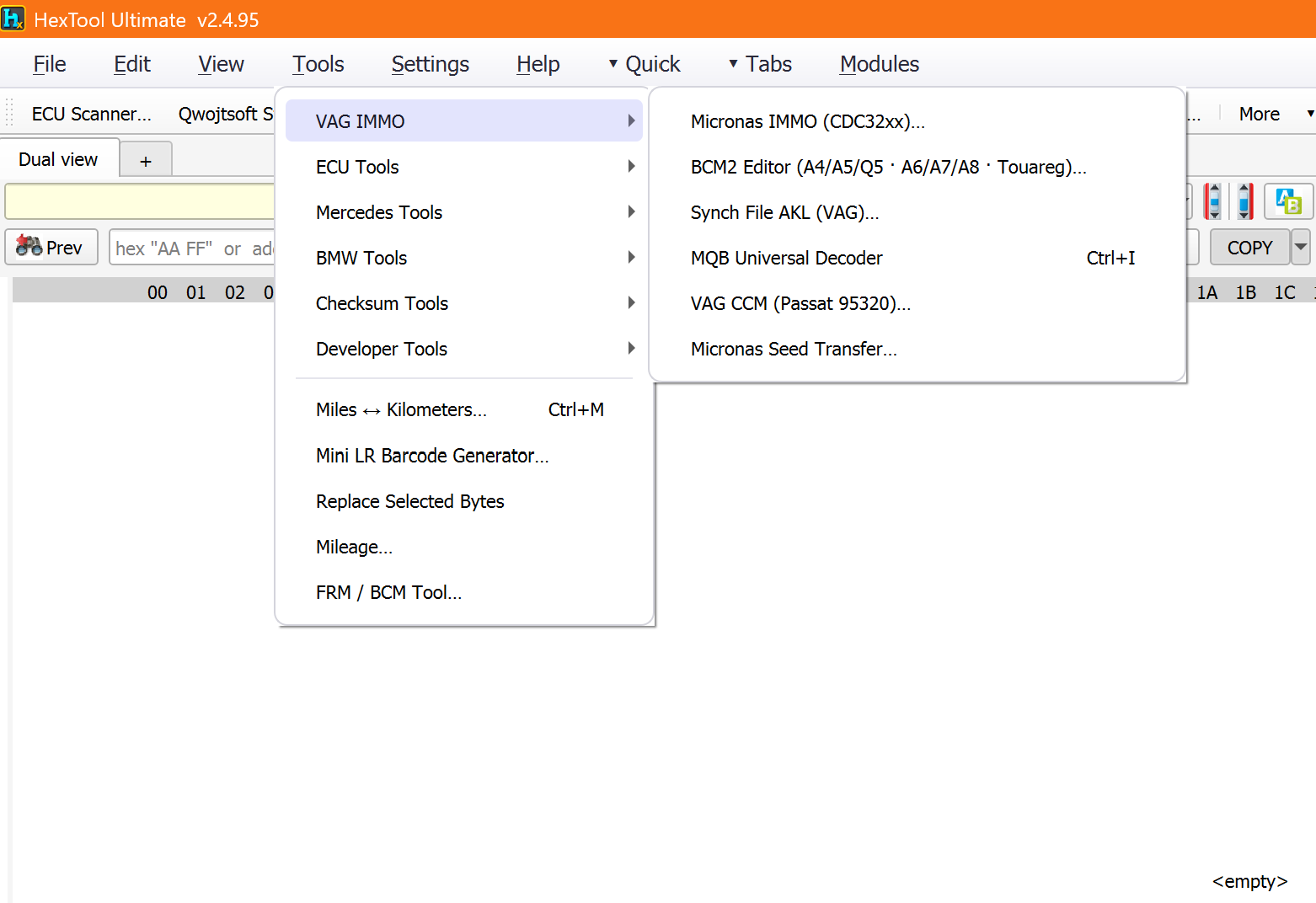
VAG IMMO
Micronas IMMO (CDC32xx)…, BCM2 Editor, Synch File AKL (VAG), MQB Universal Decoder (Ctrl+I), VAG CCM (Passat 95320)…, Micronas Seed Transfer… — each documented in the VAG Tools section.
ECU Tools
ECU Scanner… (Ctrl+Shift+H) and ECU IMMO Mileage — see the Hours/Mileage Scanner and the per-ECU profiles in the ECU Immo & Mileage section.
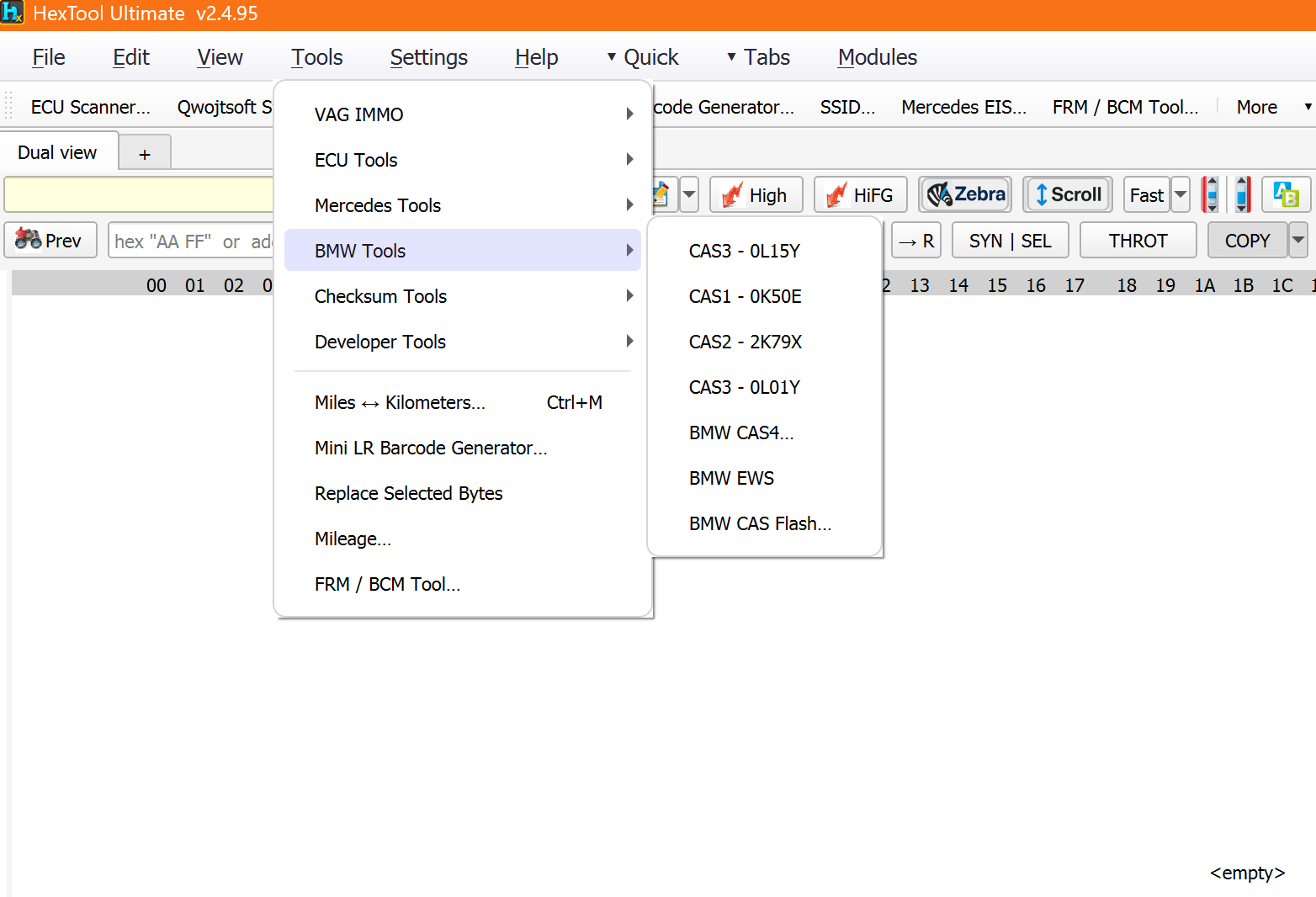
BMW Tools
CAS3 - 0L15Y, CAS1 - 0K50E, CAS2 - 2K79X, CAS3 - 0L01Y, BMW CAS4…, BMW EWS, BMW CAS Flash… — all documented in the BMW Tools section.
Mercedes Tools
SSID… and Mercedes EIS… — see the Mercedes Tools section.
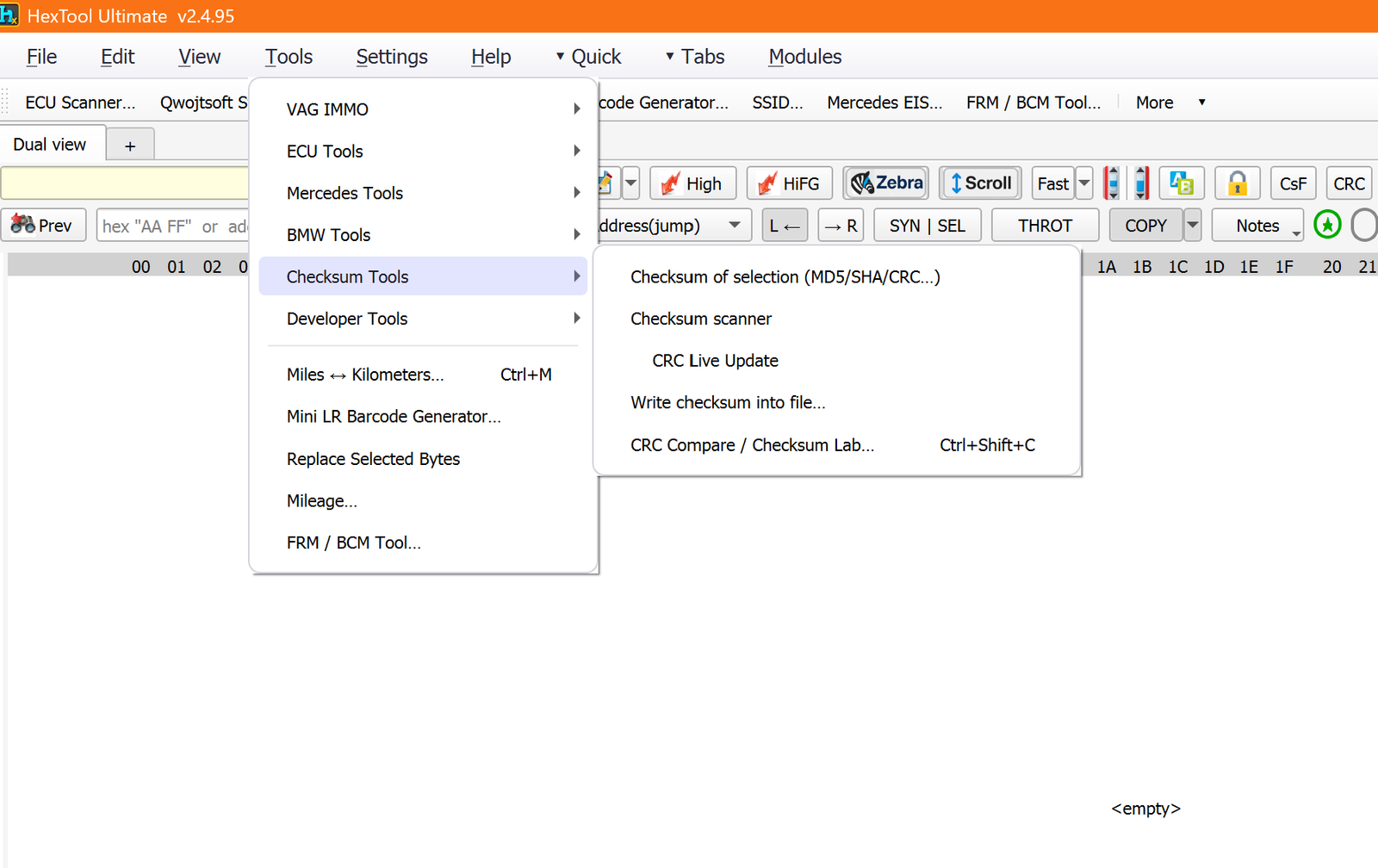
Checksum Tools
Item
What it does
Checksum of selection (MD5/SHA/CRC…)
Instantly computes common hashes/checksums over the selected bytes.
Checksum scanner (CsF)
Scans a file to detect and identify which checksum algorithm and coverage range is in use — full multi-algorithm support for calibration work.
CRC Live Update
Toggleable — keeps a live checksum recalculating as you edit bytes.
Write checksum into file…
Calculates the checksum for a chosen region and writes it directly into the file at the correct offset.
CRC Compare / Checksum Lab…(Ctrl+Shift+C)
Side-by-side checksum comparison and algorithm-testing laboratory.
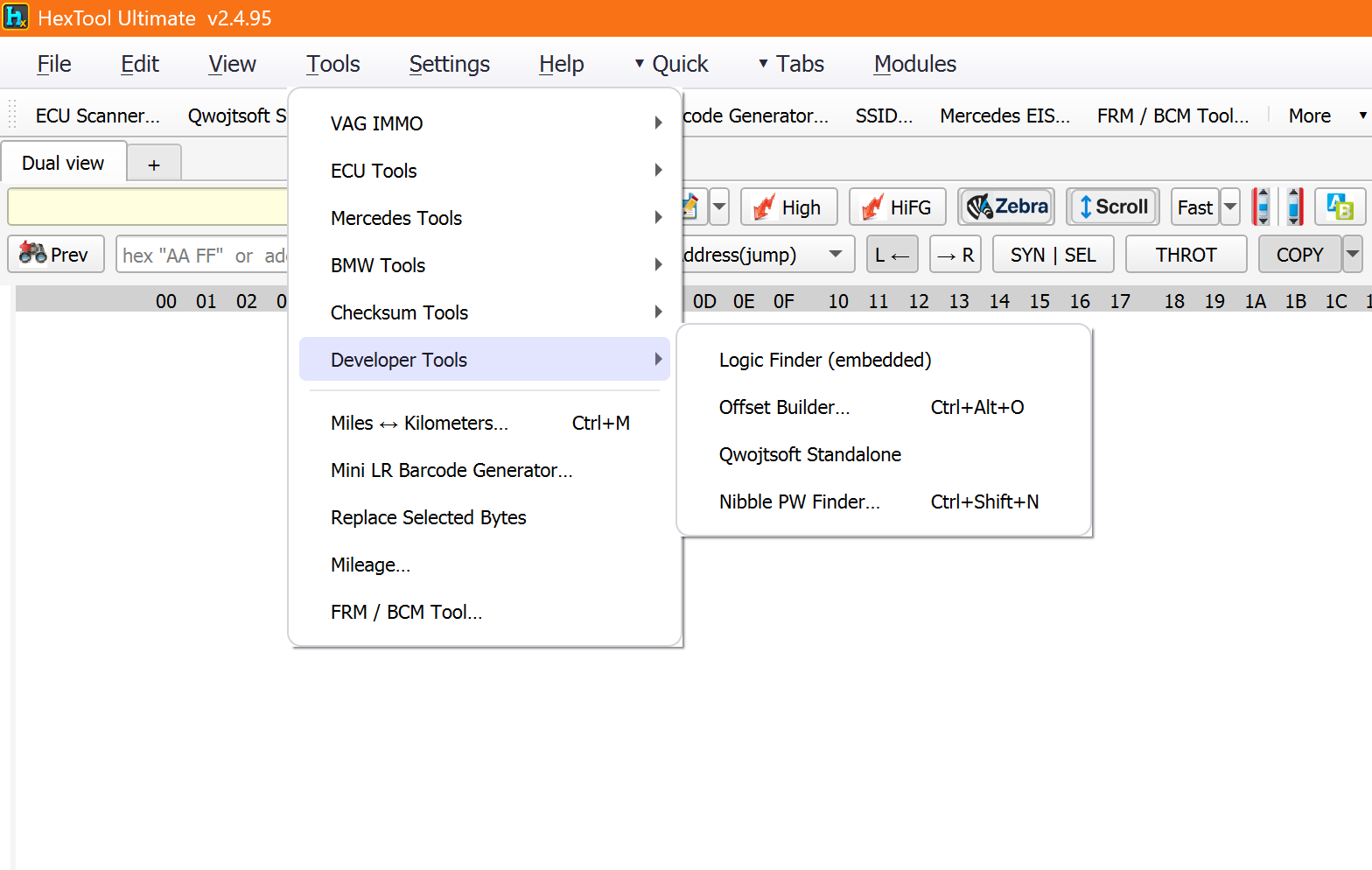
Developer Tools
Item
What it does
Logic Finder (embedded)
Automated byte-pattern analysis, repeat detection, and logic extraction for reverse-engineering ECU data structures — opens as its own tab.
Offset Builder…(Ctrl+Alt+O)
Generates offset tables with repeat patterns and width calculations, exportable to clipboard.
Qwojtsoft Standalone
Opens the Qwojtsoft calibrator tool embedded in HexTool.
Nibble PW Finder…(Ctrl+Shift+N)
Scans for passwords hidden in nibbles (half-bytes) across one or two dumps — supports scattered/non-contiguous positions (Mercedes-style), not just constant stride.
Top-level items (below the submenus)
Item
What it does
Miles ↔ Kilometers…(Ctrl+M)
Opens the mileage unit converter.
Mini LR Barcode Generator…
See the Mini LR Barcode guide (Other Tools).
Replace Selected Bytes
Pattern replacement across the current selection — for calibration data edits.
Mileage…
Opens the full Mileage Editor (odometer read/edit/virginise across BMW, Mercedes and VW ECUs).
FRM / BCM Tool…
See the BMW FRM and Jaguar BCM guides (FRM / BCM).
Interface & Menus / Help Menu & About
Help Menu & About
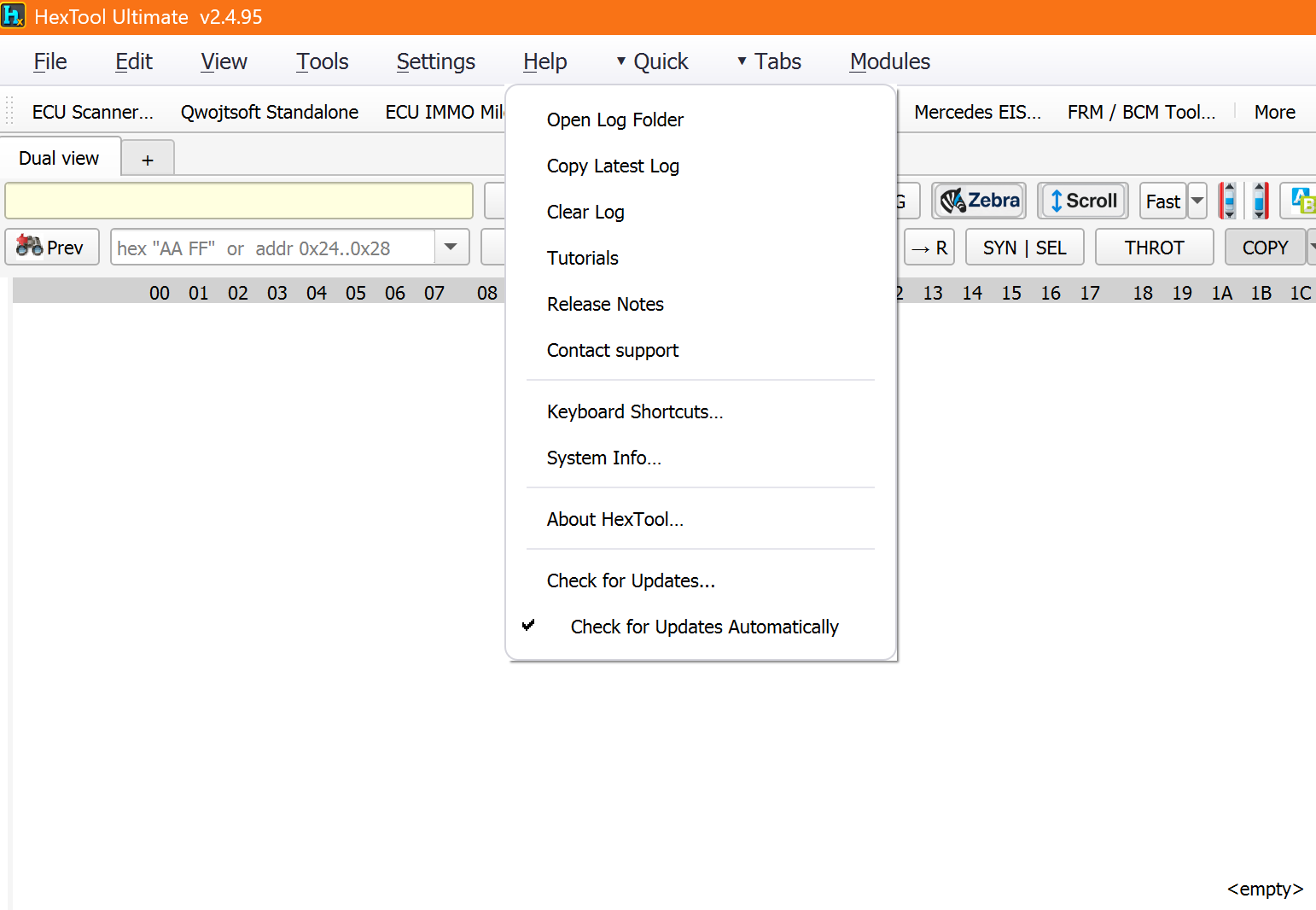
Menu items
Item
What it does
Open Log Folder
Opens the folder containing HexTool's log files in Explorer.
Copy Latest Log
Copies the most recent log file's contents to the clipboard — handy for support.
Clear Log
Clears the current log.
Tutorials / Release Notes / Contact support
Open tutorial resources, the changelog, and a direct support contact.
Keyboard Shortcuts…
Opens the About dialog straight to its Shortcuts tab.
System Info…
Opens the live System Info monitor window (see below).
About HexTool…
Opens the full About dialog (Overview / System / Shortcuts / Updates / License tabs).
Check for Updates…
Manually checks for a new version right now.
Check for Updates Automatically(checkable)
Toggles background update checks.
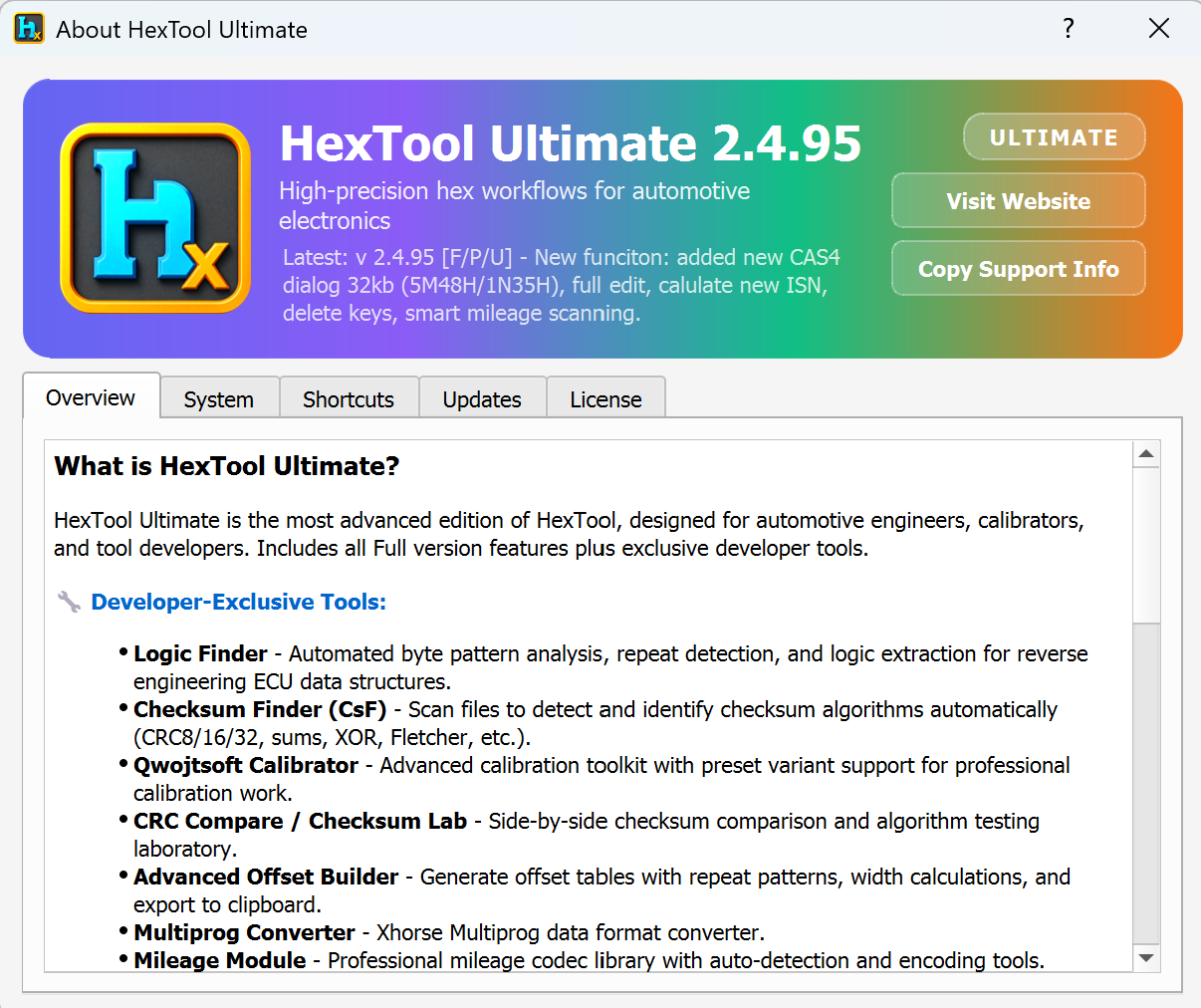
About HexTool dialog
The About dialog has 5 tabs, all sharing a header with the current version, edition badge, latest changelog line, Visit Website, and Copy Support Info buttons.
Overview tab
Explains what the current edition includes. For Ultimate, this lists the developer-exclusive tools: Logic Finder, Checksum Finder (CsF), Qwojtsoft Calibrator, CRC Compare / Checksum Lab, Advanced Offset Builder, Multiprog Converter, and the Mileage Module.
System tab
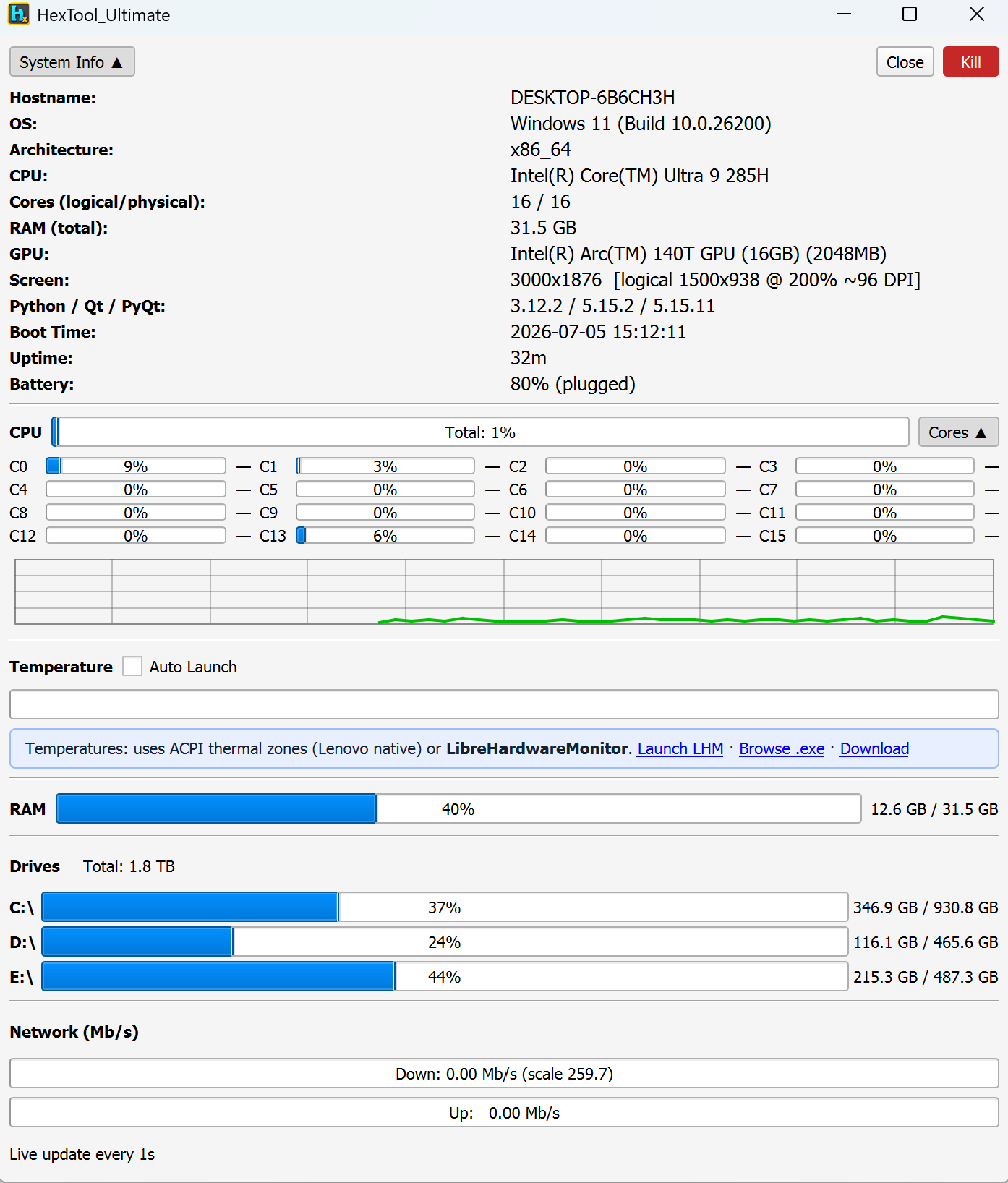
A live hardware/system monitor — Hostname, OS, Architecture, CPU, core count, RAM, GPU, screen resolution/DPI, Python/Qt/PyQt versions, boot time, uptime, and battery status, plus:
Per-core CPU usage bars and a live usage graph.
Temperature — reads ACPI thermal zones natively, or integrates with LibreHardwareMonitor (Launch / Browse / Download links) for fuller sensor data.
RAM usage bar, Drives usage per drive letter, and Network live up/down Mb/s.
Updates live every second. A Kill button is available alongside Close.
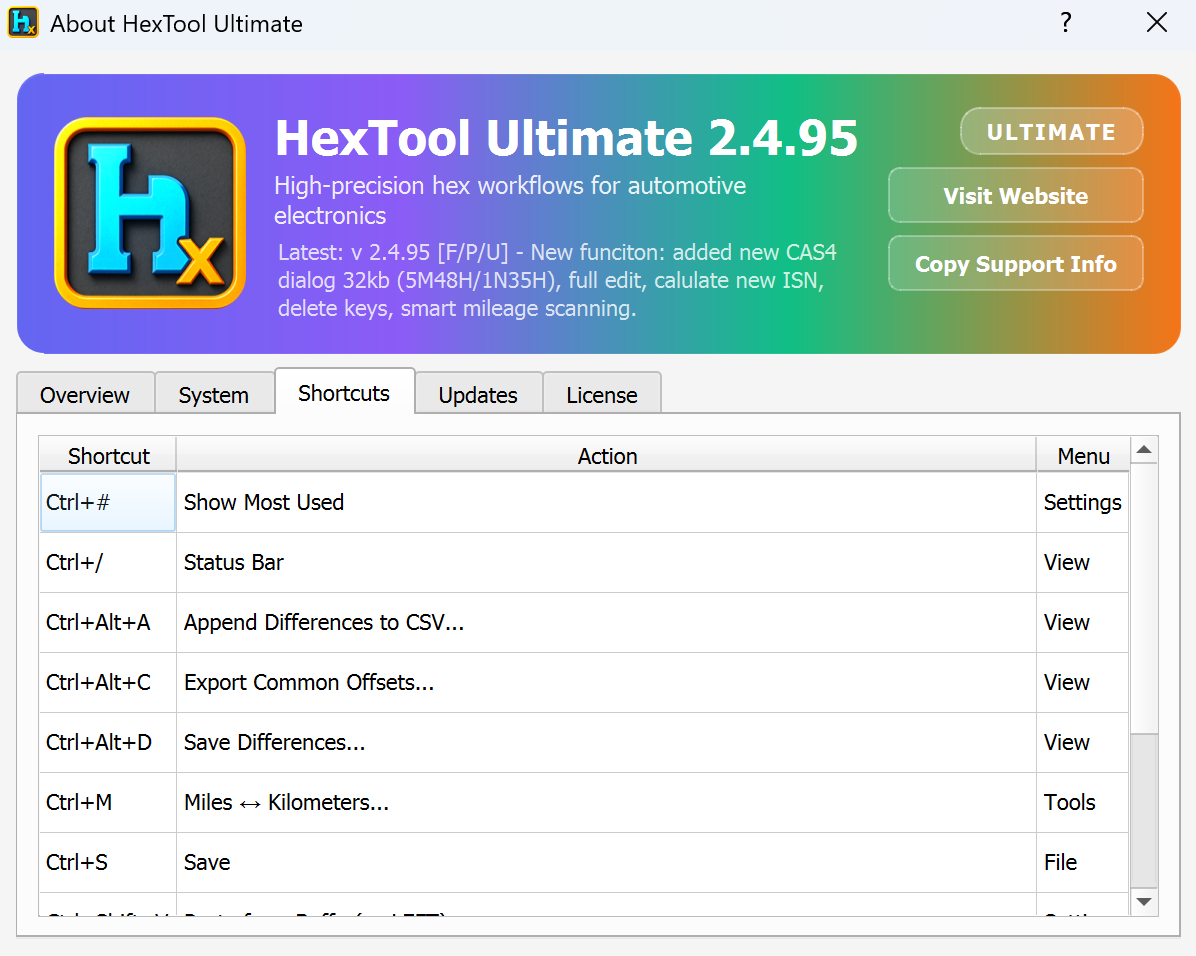
Shortcuts tab
A searchable table of every keyboard shortcut in the app, with columns for Shortcut, Action, and which Menu it lives under (e.g. Ctrl+# → Show Most Used → Settings; Ctrl+M → Miles ↔ Kilometers → Tools).
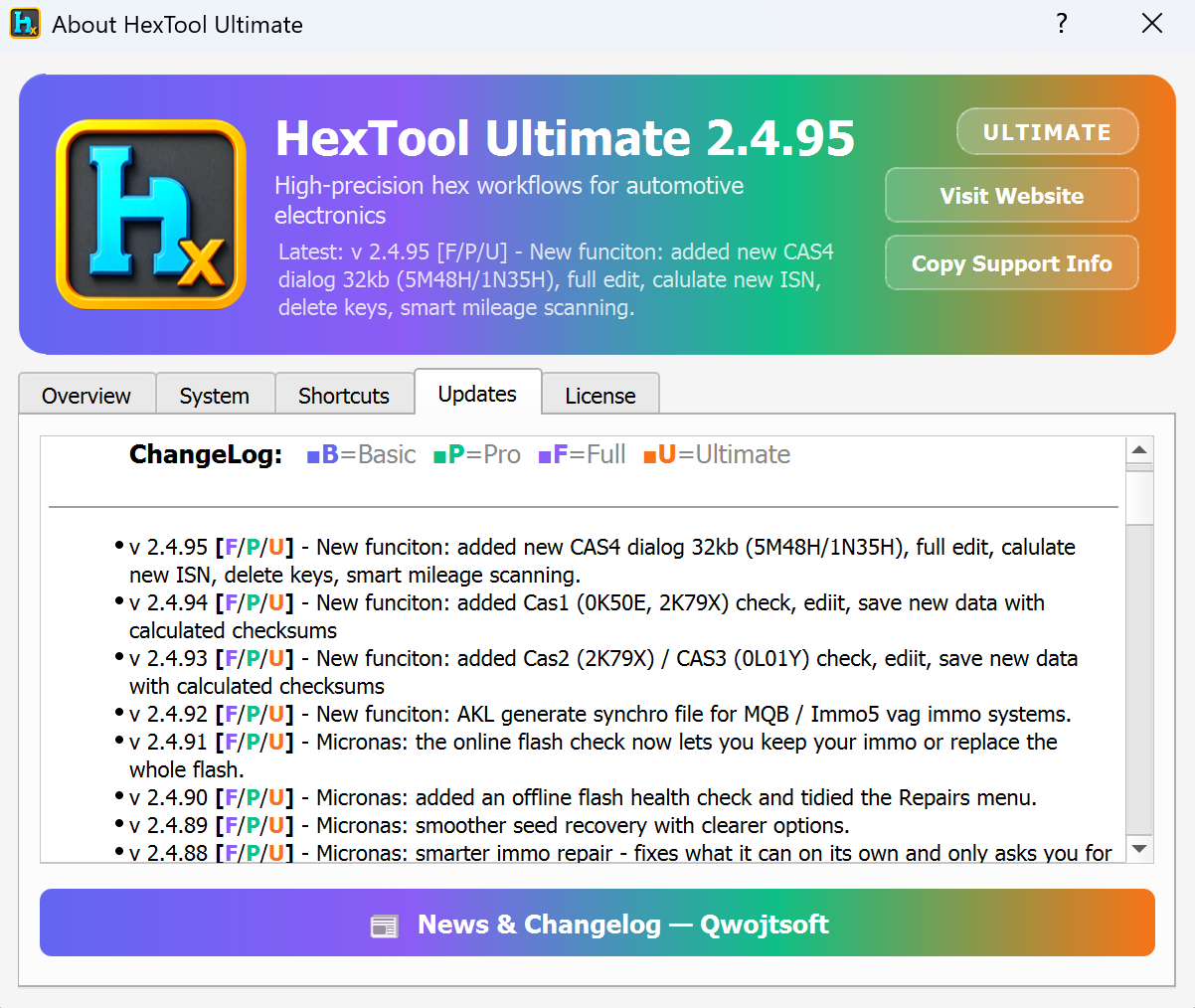
Updates tab
The complete version-by-version ChangeLog, with each entry tagged by which editions it applies to: B = Basic, P = Pro, F = Full, U = Ultimate. A [F/P/U] tag means that entry shipped in Full, Pro, and Ultimate (but not Basic). A News & Changelog button links out to the full online changelog.
License tab
Shows your current license status: edition badge, activation state and expiry countdown (e.g. "[Ultimate] Activated — expires 2027-06-21 (in 351 days)"), plus a details block (Status, Message, Email, Expiry, Updates until, HW-ID, license file path, Verify key, Next check date, Build date).
Actions available: Insert License…, Open License Folder, Copy Support Info, Refresh License, Migrate License… (for moving your license to a new machine/install).
Interface & Menus / Right-Click Menu
Right-Click Context Menu (hex view)
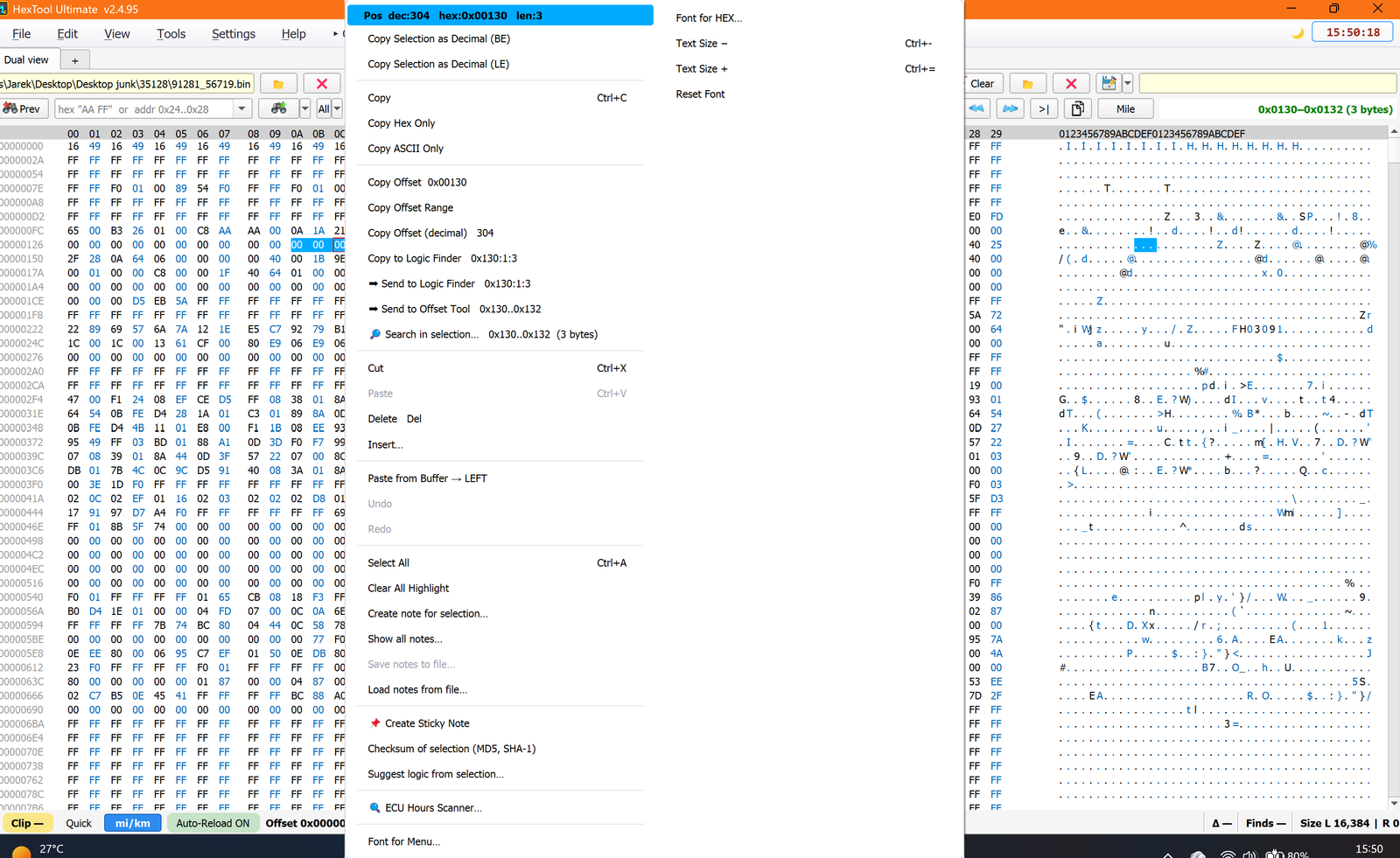
Right-clicking inside a hex pane (with or without a selection) brings up this menu. When you have bytes selected, the header bar shows the selection info at a glance (e.g. "Pos dec:304 hex:0x00130 len:3").
Copy actions
Item
What it does
Copy Selection as Decimal (BE / LE)
Copies the selected bytes interpreted as a Big-Endian or Little-Endian decimal number.
Copy(Ctrl+C)
Copies the selection in its default format (hex + ASCII, per your Copy settings).
Copy Hex Only / Copy ASCII Only
Copies just the hex bytes, or just the ASCII representation.
Copy Offset / Copy Offset Range / Copy Offset (decimal)
Copies the start offset (0x00130), the full range (0x130..0x132), or the start offset in decimal.
Logic Finder / Offset Tool integration — Ultimate only
Item
What it does
Copy to Logic Finder0x130:1:3
Copies the selection formatted as an offset:repeat:width string, ready to paste into Logic Finder.
➡ Send to Logic Finder0x130:1:3
Opens (or focuses) the Logic Finder tab and sends the selection straight into it.
➡ Send to Offset Tool0x130..0x132
Opens the Offset Tool dialog with the selected range pre-filled.
Logic Finder and Offset Tool are Ultimate-edition-exclusive developer tools — these three entries only appear/function when running the Ultimate edition.
Search & selection
Item
What it does
Search in selection…
Restricts a search to just the currently selected range.
Cut / Paste / Delete / Insert…
Standard edit actions (Paste grayed out when the clipboard has nothing byte-compatible).
Paste from Buffer → LEFT
Pastes the captured clipboard buffer into the left pane.
Undo / Redo / Select All(Ctrl+A) / Clear All Highlight
Standard undo/redo, select the entire buffer, remove all highlight coloring.
Notes & quick analysis
Item
What it does
Create note for selection… / Show all notes… / Save / Load notes / Create Sticky Note
The full notes system, available from the right-click menu.
Checksum of selection (MD5, SHA-1)
Instantly hashes the selection.
Suggest logic from selection…
Analyzes the selected bytes and suggests a likely encoding/logic.
ECU Hours Scanner…
Opens the Hours/Mileage Scanner with the selection as a starting point.
Font submenu
Font for HEX…, Text Size − (Ctrl+-), Text Size + (Ctrl+=), and Reset Font — quick access to hex-view font and size.
🛠️
Coming soon
This guide is being written and will be published here soon. Check back shortly — documentation is added regularly.